


On this page
Why you don’t need a machine or a phone line
A fax is still a phone call to a fax machine, or to a service that answers like one. When you fax online, that call isn’t made from your home. Your browser sends the pages to FaxTonic over the internet, and our fax provider dials the recipient’s number and transmits them.
So your own phone service doesn’t matter. A cell phone plan, an internet phone line, or no phone line at all: it works the same with any of them. What matters is the other end. The number has to reach a fax machine or a fax service, and a cell phone can’t take a fax.
What you need
- A computer, phone, or tablet with a web browser, online over Wi-Fi or cellular data. You don’t install anything or create an account.
- Your document as a file. FaxTonic accepts PDF, JPEG, and PNG files. The next section shows how to get there from paper, an email, or a Word file.
- The recipient’s fax number. Copy it from the paperwork you’re answering if you can. How to find a fax number explains where else to look and how to type it.
- A payment card. You pay for this fax only, and there’s no subscription.
Turn your document into a file you can fax
| Your document | What to do |
|---|---|
| On paper | Scan it with your phone’s camera, which gives you a PDF, or take a photo of each page. See how to fax a paper document with your phone. |
| In Word, Pages, or Google Docs | Make a PDF of it first, since FaxTonic doesn’t take word-processing files. How to fax a Word document has the steps for each app. |
| A PDF you have to sign | Sign it on screen, or on paper and then scan it. How to sign a PDF and fax it covers both. |
| Attached to an email, or the email itself | Save the attachment, or save the message as a PDF. The steps are in the next section. |
| A PDF locked with a password | Save a copy without the password. FaxTonic can’t add a locked PDF. |
A fax tops out at 20 pages, counting the cover page. You can put more than one file in it, arrange the files in the order they should arrive, and every page of each one goes out. Faxes arrive in black and white, so check that your pages will stay readable before you send them.
Can I fax from my email?
Not directly. FaxTonic doesn’t turn emails into faxes, so there’s no address to write to. You can fax what’s in the email, though: save the attachment, or the message, as a file on your device, then add that file to FaxTonic.
- An attachment in Gmail on a computer: open the message, hover over the attachment at the bottom, and click Download.
- An attachment in Mail on an iPhone: in the message, touch and hold the attachment, then choose Save to Files. When you add your document to FaxTonic, pick it from Files.
- The message itself, in Gmail on a computer: open it, click More at the top right of the message, then Print. For the whole conversation, click Print all at the top right instead. When the print window opens, save a PDF rather than printing, as described below.
- The message itself, in the new Outlook for Windows: open it and choose More actions > Print > Print. Pick Microsoft Print to PDF as the printer, click Print, then name the file and save it.
To get a PDF from a print window: in Chrome, next to Destination, select Save as PDF, then click Save; on a Windows PC, you can also choose the Microsoft Print to PDF printer; in Safari or another Mac app, click the PDF pop-up menu and choose Save as PDF.
If the sender used Gmail’s confidential mode, Google says you can’t download or print the message or its attachments. Ask the sender for the file another way.
From a computer
Open FaxTonic in any current browser, such as Chrome, Edge, Firefox, or Safari, and drop your file on the page or pick it from a folder. There’s no FaxTonic printer to pick in the Print menu; the file goes in on FaxTonic’s own page.
If you tried the fax feature built into Windows or macOS and it asked for a fax modem or a fax printer, see how to fax from Windows without a modem or how to fax from a Mac. For a Chromebook, see how to fax from a Chromebook.
From a phone or tablet
FaxTonic works the same in the browser on an iPhone, an iPad, or an Android phone or tablet. There’s no app to download. Tap the box that reads Drop your files here and choose the file from your device.
- Paper pages: the Files app’s scanner works on an iPad just as it does on an iPhone. Tap the More button (…), then Scan Documents. The full steps for iPhone and Android are in how to fax a paper document with your phone.
- Before you switch apps, copy the status page’s link. There’s no account to sign back into, so the link is how you find the fax again.
Cost, apps, receiving, and other questions
- Is there a free way? Not with FaxTonic. A page to the United States costs $1.49, other destinations have their own price per page, and the cover page costs nothing. If price is the problem, ask the recipient whether email or an upload page works too, or see whether a library or store near you sends faxes in where to send a fax.
- Do I need an app? No. FaxTonic runs in the browser, with no app, extension, or printer driver to install.
- Can I receive faxes without a machine? Not with FaxTonic: it only sends faxes and doesn’t give you a fax number, so nobody can fax you through it. To receive faxes, you need a fax number answered by a machine or by a service that receives faxes for you. If you’re considering a machine of your own, see fax machine or online fax.
- Will the recipient know it’s from me? The free cover page is the first page they see, so put your name and phone number on it. The received pages may also carry a one-line header at the top, with the date, the time, the page number, and FaxTonic’s sending number rather than yours. FaxTonic only sends faxes, so a fax sent back to that number won’t reach you. What to put on a fax cover sheet covers the rest, including the US rule on identifying the sender.
- How long does it take? Once sending starts, the status page tells you: “A short fax usually takes a minute or two.”
- Which countries can I fax? FaxTonic sends faxes to these countries: United States, Canada, United Kingdom, France, Germany, Australia, and Spain. For numbers outside the US, see how to send an international fax from the US.
- What happens to my document? FaxTonic deletes it once the fax is delivered or has failed, and keeps it no longer than 24 hours either way. Keep your own copy.
Once it’s sent: the status page and refunds
The status page follows the fax and shows Delivered once the receiving fax machine confirms the pages. Treat it as your record of sending. A machine confirming the pages tells you they reached that number, not that anyone has read them, and FaxTonic has no transmission report or confirmation sheet. Take a screenshot, and write the year next to it, since the page’s dates don’t show it. Did my fax go through? explains each part of the page.
If the fax doesn’t go through, you’re refunded automatically: the price minus a fee of $0.30 + 2.9%, or the whole price if our fax provider refuses the fax when we submit it. FaxTonic doesn’t resend a failed fax. Before you send a new one, read what to check when a fax doesn’t go through.
Fax it from your browser with FaxTonic
- Turn the document into a PDF, or take one photo per page.
- Open FaxTonic and add the file, or several files in the order you want them sent.
- Fill in the free cover page. Only Your name is required, but add Your phone number so the recipient can reach you. Or switch the cover page off.
- Choose the country, type the fax number, and click Get the total.
- In Check and pay, compare the number with your source, check the page count and the total, then pay by card.
- Leave the status page open until it shows Delivered, or copy its link to check back later.
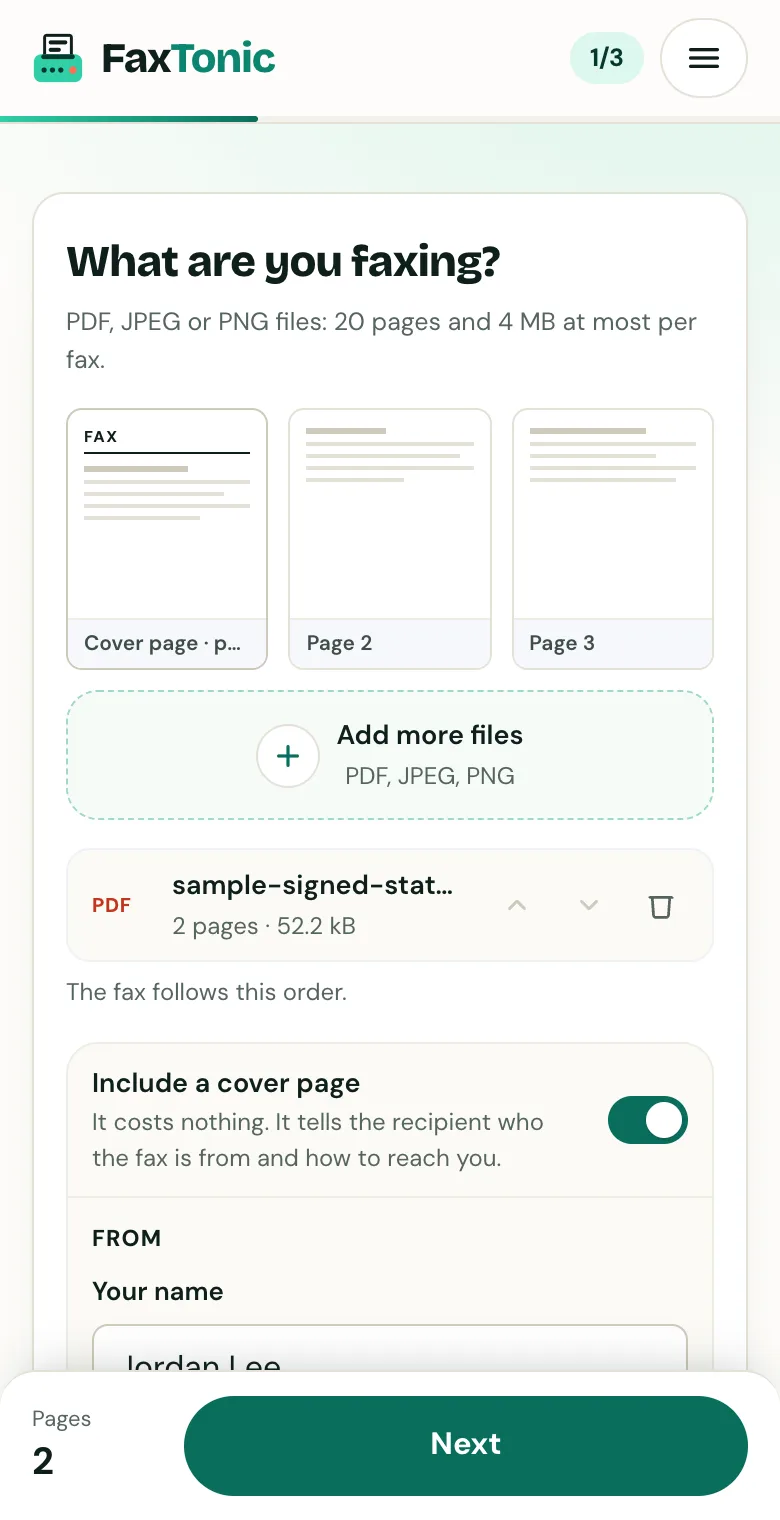
Add your file. The cover page is free, and you can turn it off.
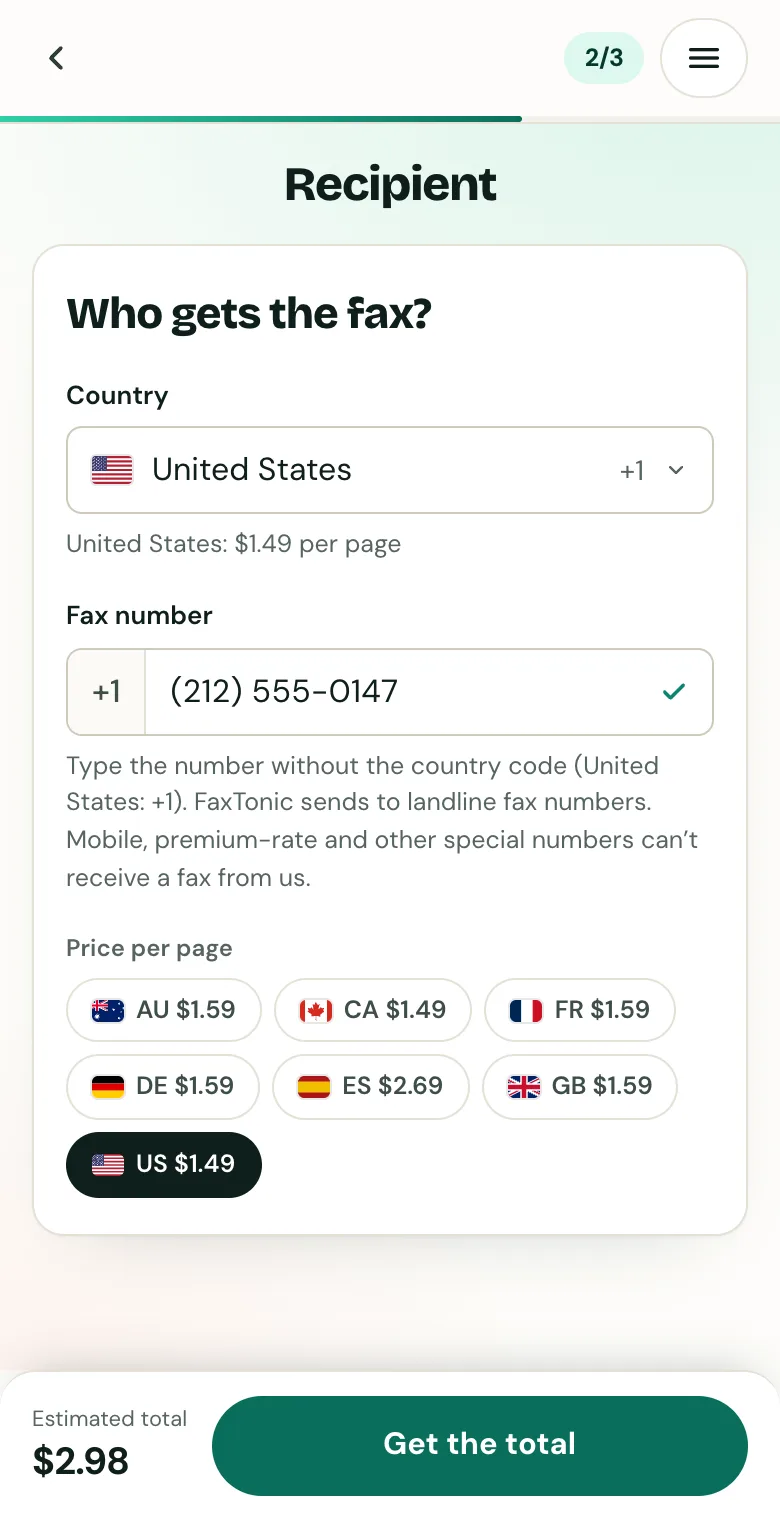
Pick the country and type the fax number.
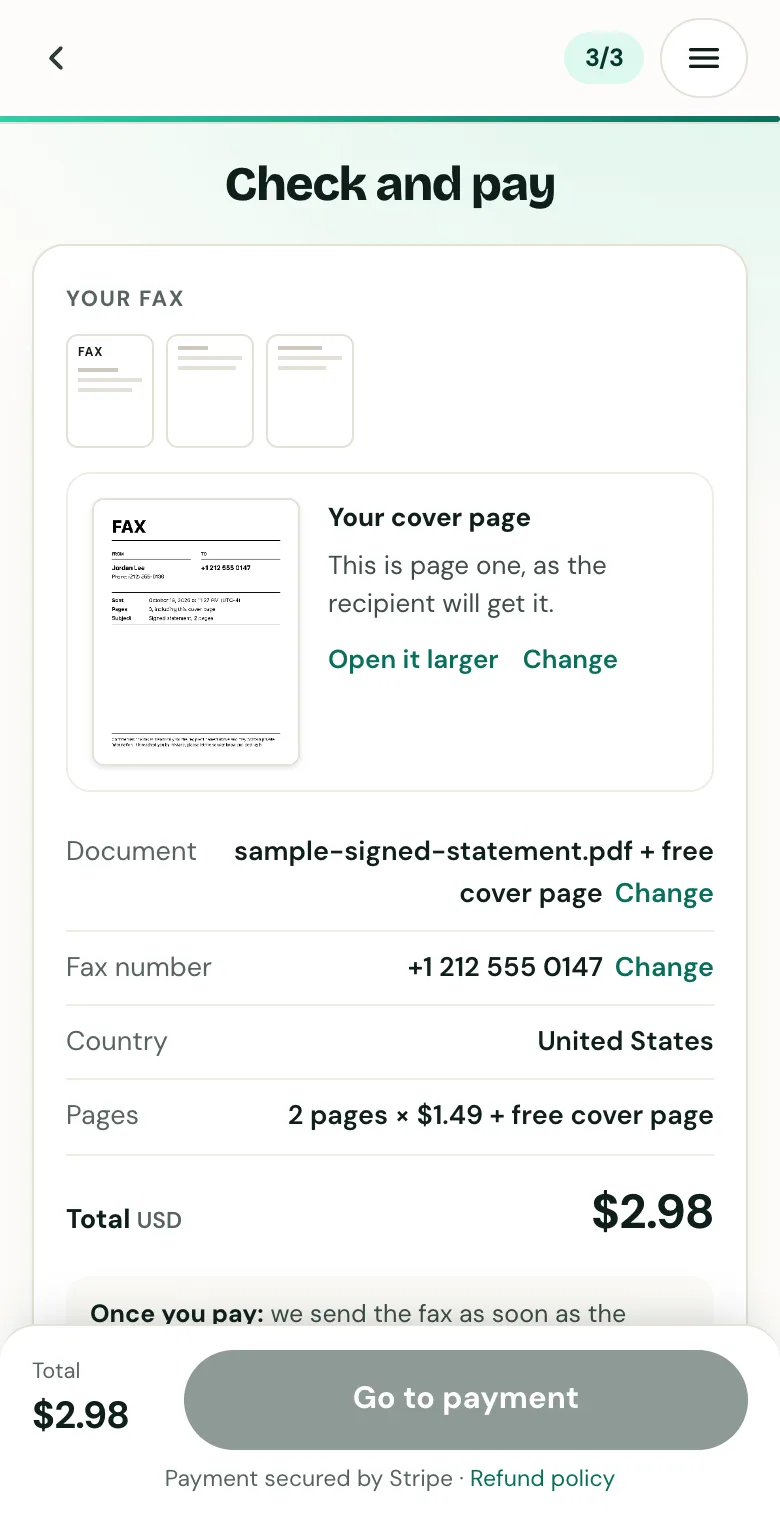
Check the cover page, the number and the total before you pay.
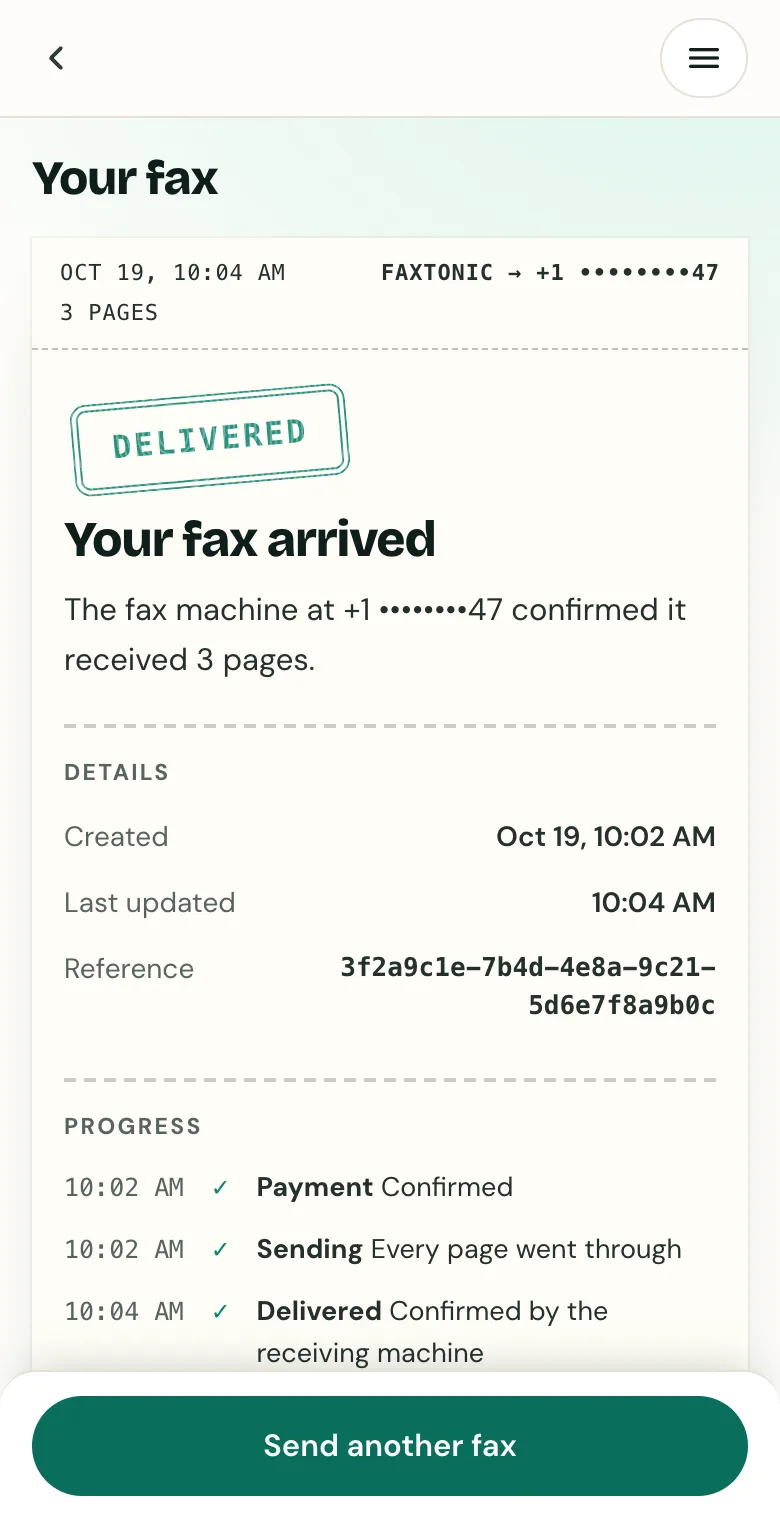
Track your fax: the status page shows when it’s delivered.
Official sources
- Google: Open & download attachments in Gmail (computer)
- Google: Send & open confidential emails (Gmail)
- Google: Print Gmail messages (computer)
- Apple: Download email attachments in Mail on iPhone
- Microsoft: Save an Outlook message as a .eml file, a PDF file, or as a draft
- Google: Print from Chrome (print preview)
- Google: Create, view, or download a file (Chrome print window: next to Destination, select Save as PDF)
- Apple: Save a document as a PDF on Mac
- Apple: How to scan documents on your iPhone or iPad
FaxTonic is an independent fax service. It isn’t affiliated with or endorsed by any agency, insurer, court or company named in this guide. Fax numbers and rules change: when a letter or form gives you a fax number, use that one.