



On this page
What Apple says about faxing from a Mac
macOS still has a fax feature, but it works only through a printer. Apple’s Mac User Guide starts from a multifunction printer that supports faxing and is connected to your Mac. You add it in System Settings > Printers & Scanners with the Add Printer, Scanner, or Fax button, choosing the version of the printer software that supports faxing. To send, you choose File > Print, pick the printer under Faxes in the Printer pop-up menu, type the number in the Recipients field, and click Fax. The printer itself has to be plugged into a phone line: Epson, for example, tells owners of its WorkForce fax printers that the printer must be connected to a telephone wall jack to send or receive faxes, and that it can’t guarantee compatibility with VoIP, cable phone, or fiber-optic phone service.
A fax modem is no longer an option: editions of the guide up to macOS Sequoia 15 say the Mac can no longer send faxes through a legacy fax modem. If you already own one, Apple says third-party fax software may let you keep using it, and it also suggests an internet fax service.
FaxTonic is that kind of service. It works in your browser, so there’s no printer, modem, or phone line to set up.
Save the document as a PDF
FaxTonic takes PDF, JPEG, and PNG files. Here’s how to get one on a Mac:
- From the Print dialog, in most apps: choose File > Print, click the PDF pop-up menu and choose Save as PDF, then enter a name and pick a location. Leave Security Options alone: FaxTonic can’t add a PDF that has a password.
- In Pages: choose File > Export To > PDF. Leave the checkboxes for comments and smart annotations unselected unless they belong on the fax. Click Save, type a name, choose a folder from the Where pop-up menu, and click Export. Apple notes that a document’s password carries over to the PDF, so if yours has one, deselect Require password to open first.
- In Microsoft Word: the steps for Word for Mac, and what to check in the PDF, are in how to fax a Word document.
- A PDF you filled in or signed in Preview: Apple says that saving or exporting from Preview keeps annotations editable, while File > Print, then Save as PDF, flattens them into the page. FaxTonic prepares each page the way it prints, so a copy made through the Print dialog shows which marks will make it onto the fax. Open it, check that your signature and typed text are there, and add that copy. For the signature itself, see how to sign a PDF and fax it.
- A picture or screenshot: JPEG and PNG files go in as they are. An HEIC image (.heic) works only in a browser that can open it, such as Safari. For Chrome or Firefox, open it in Preview, choose File > Export, and pick JPEG or PNG from the Format pop-up menu. Screenshots need the same step when the Screenshot app’s Capture Format is set to HDR: on a supported Mac with macOS Tahoe 26 or later, they’re then saved as HEIF images.
Scan a paper page with your iPhone
With Continuity Camera, your iPhone scans the page and the PDF lands on your Mac:
- On the Mac, Control-click the desktop, or an empty spot in a Finder window showing the folder where the scan should go.
- Choose Scan Documents. If you don’t see it, choose Insert from iPhone or iPad first.
- The camera opens on your iPhone. Hold the page in view and wait for the scan to finish. To capture it yourself, tap the Shutter button or a volume button, drag the corners to fit the page, then tap Keep Scan.
- Scan any other pages the same way, then tap Save. The scan appears on the Mac as a PDF file.
Both devices need Wi-Fi and Bluetooth turned on, must be signed in to the same Apple Account with two-factor authentication, and have to be within 30 feet of each other. For scanning, Apple lists macOS Mojave 10.14 or later and iOS 12 or later. The scan isn’t kept on the iPhone, only on the Mac.
Lay the page flat in good light so the text comes out dark and sharp. More tips, and how to scan with the iPhone alone, are in how to fax a paper document with your phone.
With a scanner, or a printer that scans: in System Settings > Printers & Scanners, click the printer, then Open Scanner. Click Show Details, choose Text from the Kind pop-up menu and PDF from the Format pop-up menu, then click Scan.
Good to know
- FaxTonic doesn’t show up under Faxes in the Print dialog. You add the PDF on FaxTonic’s page in the browser instead.
- A fax can have up to 20 pages, the cover page included. Several files can go in one fax, in the order you set. To take out or reorder pages inside a PDF, see how to prepare a document for fax.
- FaxTonic sends faxes to these countries: United States, Canada, United Kingdom, France, Germany, Australia, and Spain. It doesn’t receive faxes or give you a fax number.
- If a fax doesn’t go through, FaxTonic refunds you automatically: the price minus a fee of $0.30 + 2.9%, or the full price if our fax provider refuses the fax when we submit it. See what to do when a fax doesn’t go through and the refund policy.
Fax from your Mac with FaxTonic
- Save the document as a PDF, or scan it with your iPhone.
- Open FaxTonic in Safari, Chrome, or Firefox and drag the file onto the Drop your files here area, or pick it from your Mac. Add any other files in the order they should arrive.
- Fill in the free cover page, or switch it off. Only your name is required.
- Choose the country and type the fax number.
- Check the page count and the total, $1.49 a page to the United States, then pay by card.
- Keep the status page open or save its link. It shows Delivered once the receiving machine confirms the fax.
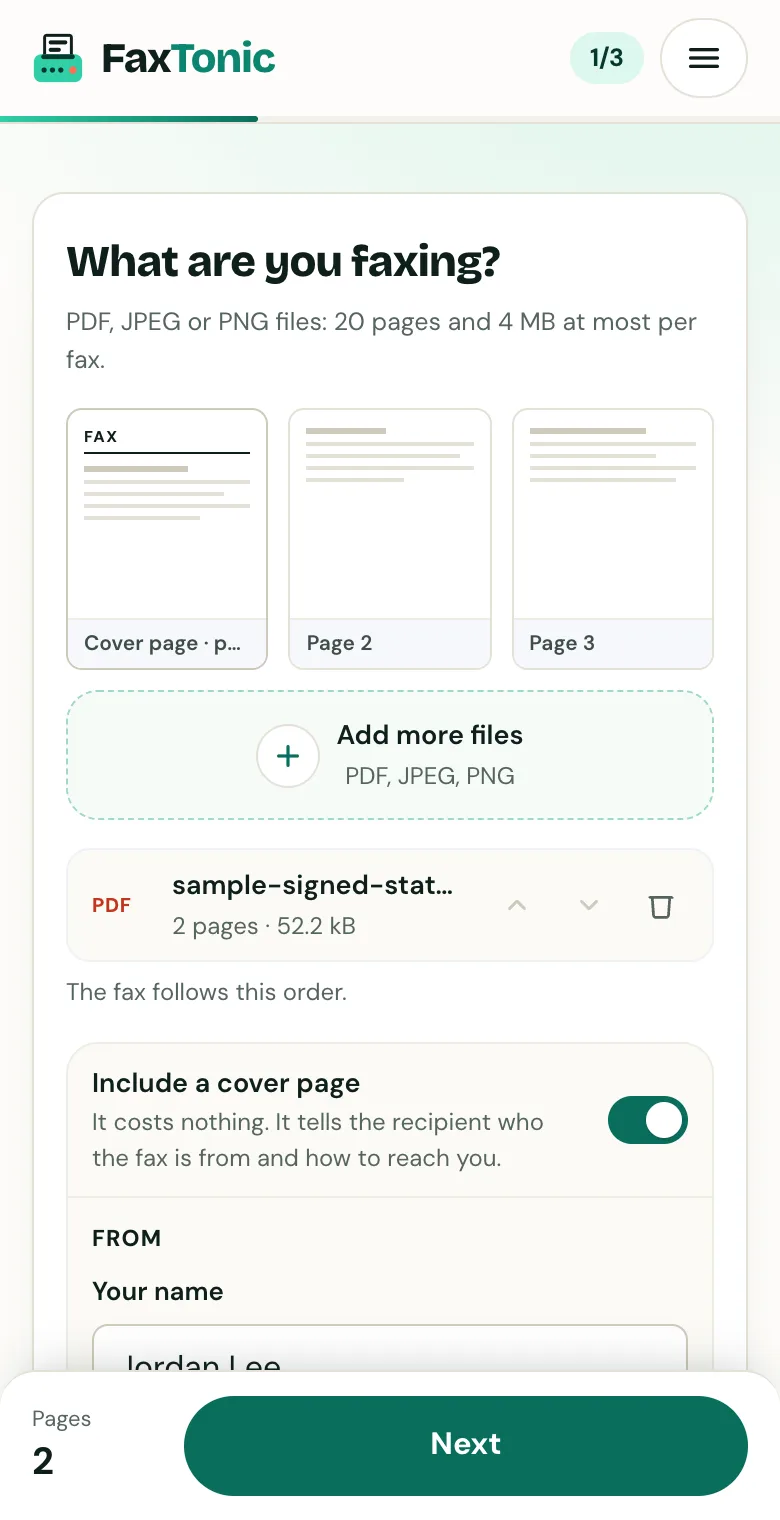
Add your file. The cover page is free, and you can turn it off.
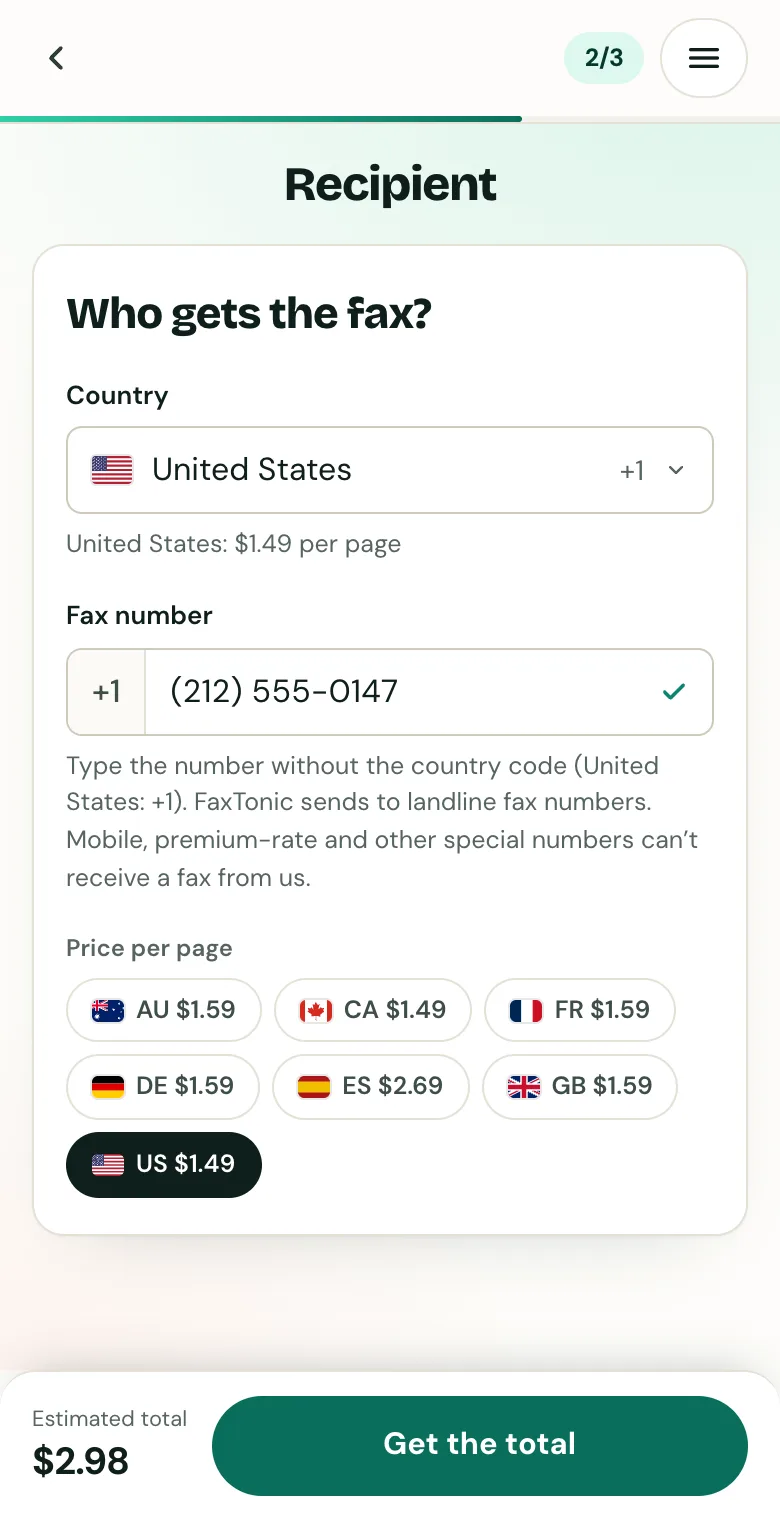
Pick the country and type the fax number.
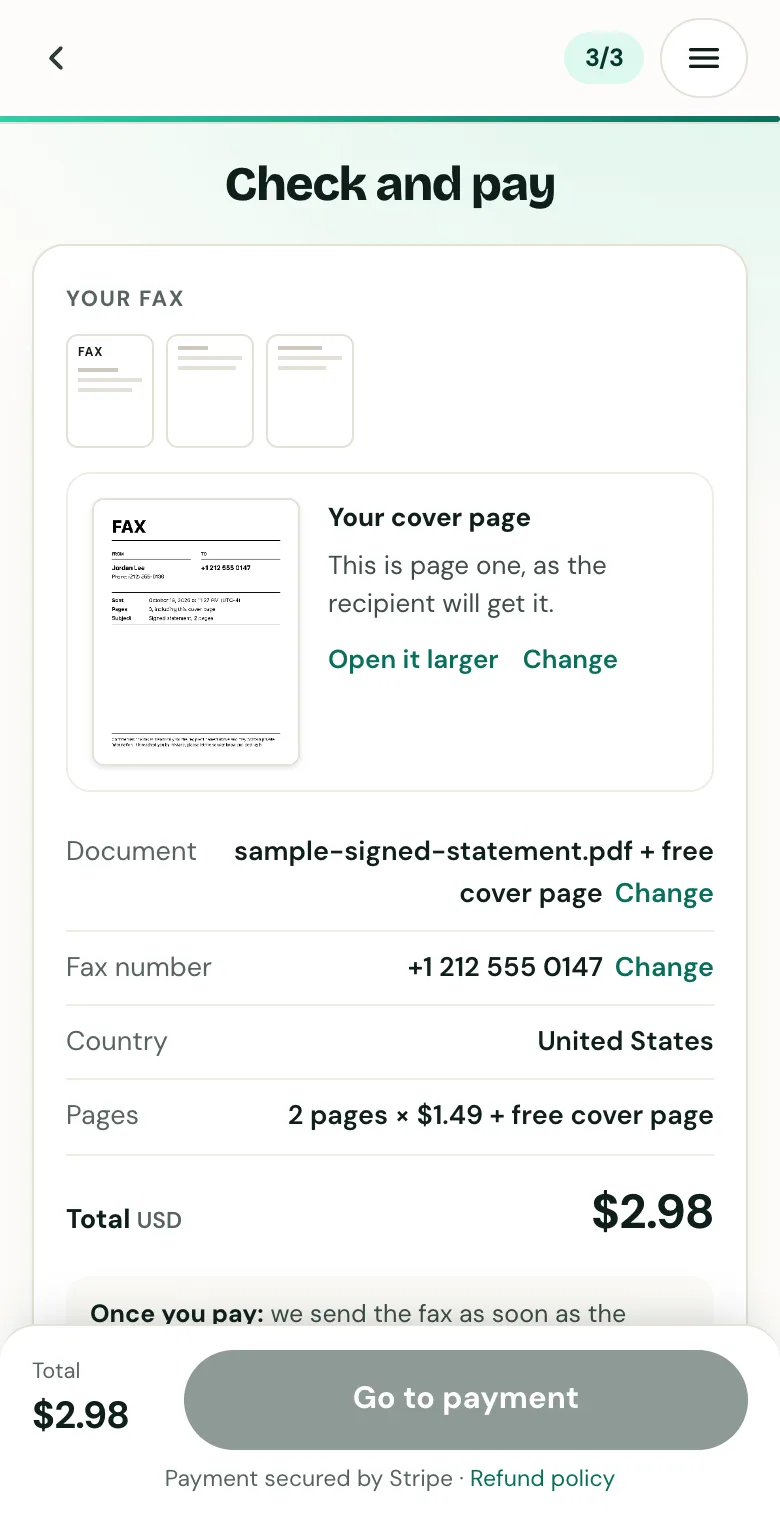
Check the cover page, the number and the total before you pay.
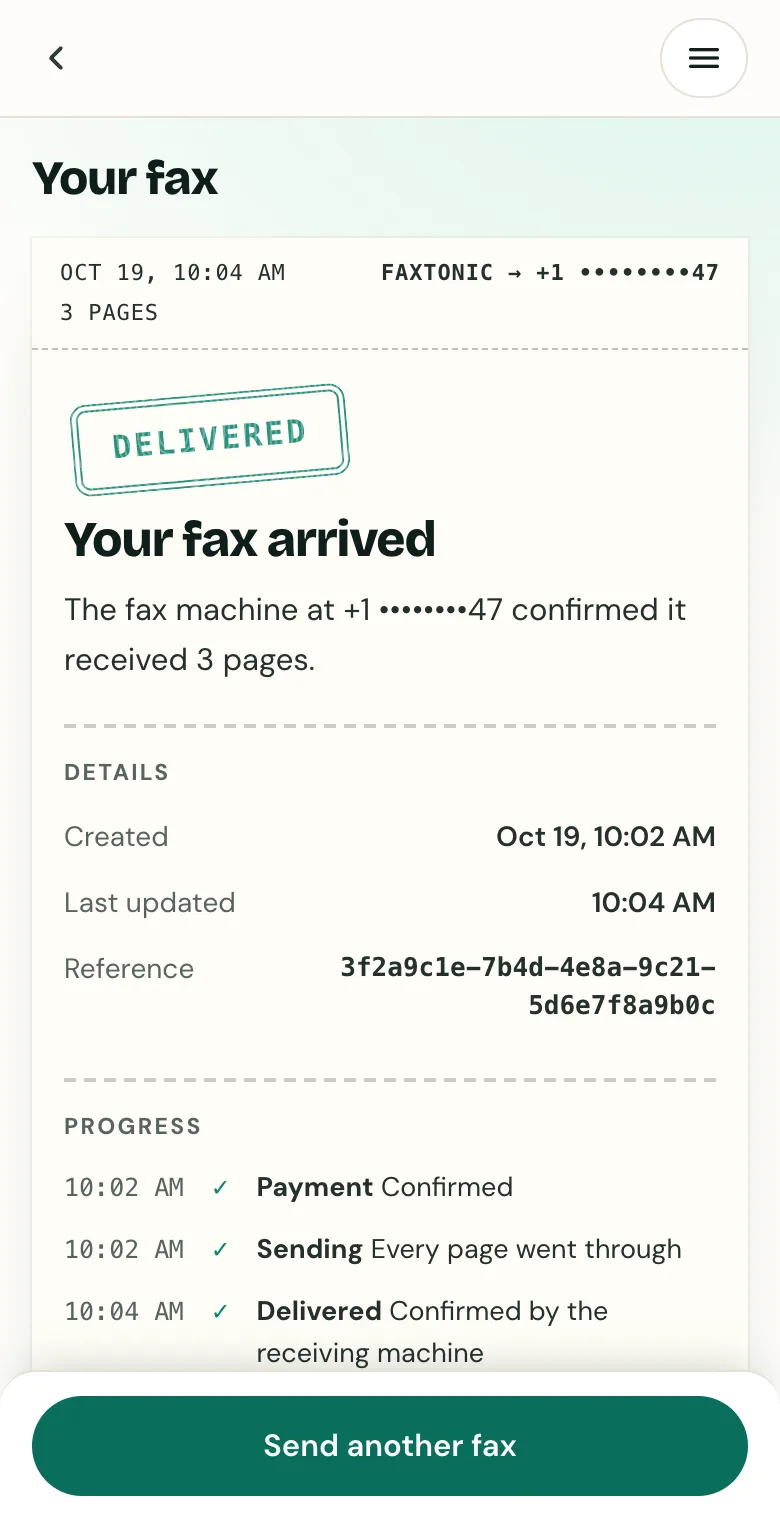
Track your fax: the status page shows when it’s delivered.
Official sources
- Apple: Send a fax from your Mac using a multifunction printer (Mac User Guide)
- Apple: Set up a scanner or fax on Mac (set up a printer to send faxes)
- Apple: Set up a multifunction printer to send faxes (macOS Sonoma 14 edition: no legacy fax modems)
- Apple: Set up a multifunction printer to send faxes (macOS Sequoia 15 edition: no legacy fax modems)
- Epson: Connecting a telephone or answering machine (WorkForce Pro WF-4820/4830: wall jack, VoIP)
- Apple: Save a document as a PDF on Mac
- Apple: Convert to Word, PDF, or another file format in Pages on Mac
- Apple: Annotate a PDF in Preview on Mac (editable or flattened annotations)
- Apple: Using HEIF or HEVC media on Apple devices (HDR screenshots, converting in Preview)
- Apple: Convert image file types using Preview on Mac
- Apple: Continuity Camera, scan documents on your Mac with your iPhone (requirements)
- Apple: Insert sketches, photos, and scans from iPhone or iPad on Mac
- Apple: Scan images or documents using a scanner on Mac
FaxTonic is an independent fax service. It isn’t affiliated with or endorsed by any agency, insurer, court or company named in this guide. Fax numbers and rules change: when a letter or form gives you a fax number, use that one.