


On this page
Scan or photo?
There are two ways to turn a paper page into a file you can fax:
- A scan: a scanning app finds the edges of the page and crops the picture to them, and it puts several pages into one document. The Notes app on an iPhone saves that document as a PDF, a format FaxTonic takes, and Google Drive on Android lets you choose PDF.
- A photo: the camera keeps everything in the frame, including the table around the page, and each photo becomes one page of the fax.
A scan is usually the better choice. FaxTonic places a photo whole on the fax page, so whatever surrounds the page is faxed too, and it takes up room that the page itself could use. A dark table comes out as a band of dots. A scan keeps only the page, and a document of several pages stays in one file.
Scan on an iPhone
- In the Files app, tap the More button (…), then Scan Documents.
- Hold your iPhone over the page. In Auto mode, it scans the page on its own. Otherwise, tap the Shutter button or press a volume button, drag the corners to fit the page, then tap Keep Scan.
- Scan the next pages the same way, then tap Done.
- Choose a location, then tap Save.
When you add your document to FaxTonic, pick the scan from Files.
The Notes app has the same scanner: in a note, tap the Attachment button, then Scan Documents. Notes saves the scan as a PDF inside the note, though. For a fax, the Files app is simpler, because its scan is a file you can pick right away.
Scan on an Android phone
- Open the Google Drive app and tap Camera at the bottom right.
- Point the camera at the page. A blue line outlines the part of the picture Drive keeps. Take the photo, or let automatic capture take it.
- To scan another page, tap Add. Crop & Rotate adjusts the area kept, and Retake lets you take a page again.
- Tap Done, name the file, choose .pdf and tap Save.
The scan is saved in Google Drive. If it doesn’t show up when you pick a file in FaxTonic, download it to your phone first: in the Drive app, tap More next to the file’s name, then Download.
Take a good photo
If you use the camera instead, a few habits make the fax much easier to read:
- Lay the page flat and shoot from straight above, so the lines of text stay straight.
- Use good, even light. Paper that looks gray in a dim photo comes out as dots, and a shadow across the text can come out as a dark patch.
- Fill the frame with the page, and hold the phone upright for an upright page. FaxTonic fits the whole photo onto an upright fax page, so a wide photo, or a lot of space around the page, makes the text smaller.
- Crop to the page before you add the photo. On an iPhone, open it in Photos, pinch to zoom in on the page, tap Crop at the top right, adjust, then tap Done. On Android, in Google Photos, tap Edit, then Crop, drag the crop handles, tap the checkmark, then tap Save.
- Check that it’s sharp: zoom in on the photo and make sure you can read every line. FaxTonic shows a real preview of the cover page only, so check your pages on your phone before you add them.
FaxTonic places a photo the way your phone shows it. If a photo appears sideways, rotate it in your photo app first.
iPhone photos and HEIC files
An iPhone can take photos in HEIF, a high-efficiency format whose files end in .heic. FaxTonic takes PDF, JPEG, and PNG files only, so it can’t send a .heic photo. If a photo won’t add, or FaxTonic says it can’t be faxed, you have two options:
- Scan the page instead. A scan from the Files app, or a Google Drive scan saved as .pdf, gives you a file FaxTonic takes.
- Change the camera’s format: go to Settings > Camera > Formats and tap Most Compatible. New photos are then taken as JPEG files. Photos you’ve already taken don’t change, so take the photo again.
A document with several pages
- Scan every page into one document: keep scanning before you tap Done on an iPhone, or tap Add in Google Drive. The pages stay together, in the order you scanned them.
- Or take one photo per page: add all the photos, then put them in order with the arrows next to each file. The fax follows that order, after the cover page.
You can also mix files in one fax, for example a scanned form and a photo of a receipt. FaxTonic sends every page of every file.
What black and white does to your pages
A fax is printed in black and white, so FaxTonic turns every page into black and white before sending it. Dark text on white paper comes through best.
- Pale ink fades: light pencil, pastel ink, highlighter and faint stamps can come out as dots or disappear, because very light tones turn white.
- Colored or gray backgrounds come out as a pattern of dots, denser the darker they are. So do shadows, a gray-looking page in poor light, and photos printed on the page.
- A small photo stays small: a photo is centered on the page with a margin and never enlarged.
For more on keeping a document readable, see how to prepare a document for fax.
Page and size limits
- Pages: a fax can have up to 20 pages, and the free cover page counts as one. If your document has exactly 20 pages, turn off the cover page. If it’s longer, send it as two faxes.
- Size: a fax can be up to 4 MB once FaxTonic has prepared it for sending. What counts is the prepared fax, not the size of your photo or scan, so a large file from your phone is fine. Pages full of dots, from shadows, dark backgrounds or photos, take the most room. If a document still comes out too large, send it as two faxes.
Fax it with FaxTonic
- If the document needs a signature, sign it in dark ink before you scan it. See how to sign a PDF and fax it.
- Scan the pages into one document, or take a photo of each page.
- Open FaxTonic in your phone’s browser and add the scan, or the photos in order. The cover page is free.
- Choose the country and type the fax number. A cell phone can’t receive a fax: see can you fax a cell phone?
- Check the page count and the total, $1.49 a page to the United States, and pay by card.
- Follow the fax on its status page until the receiving machine confirms it.
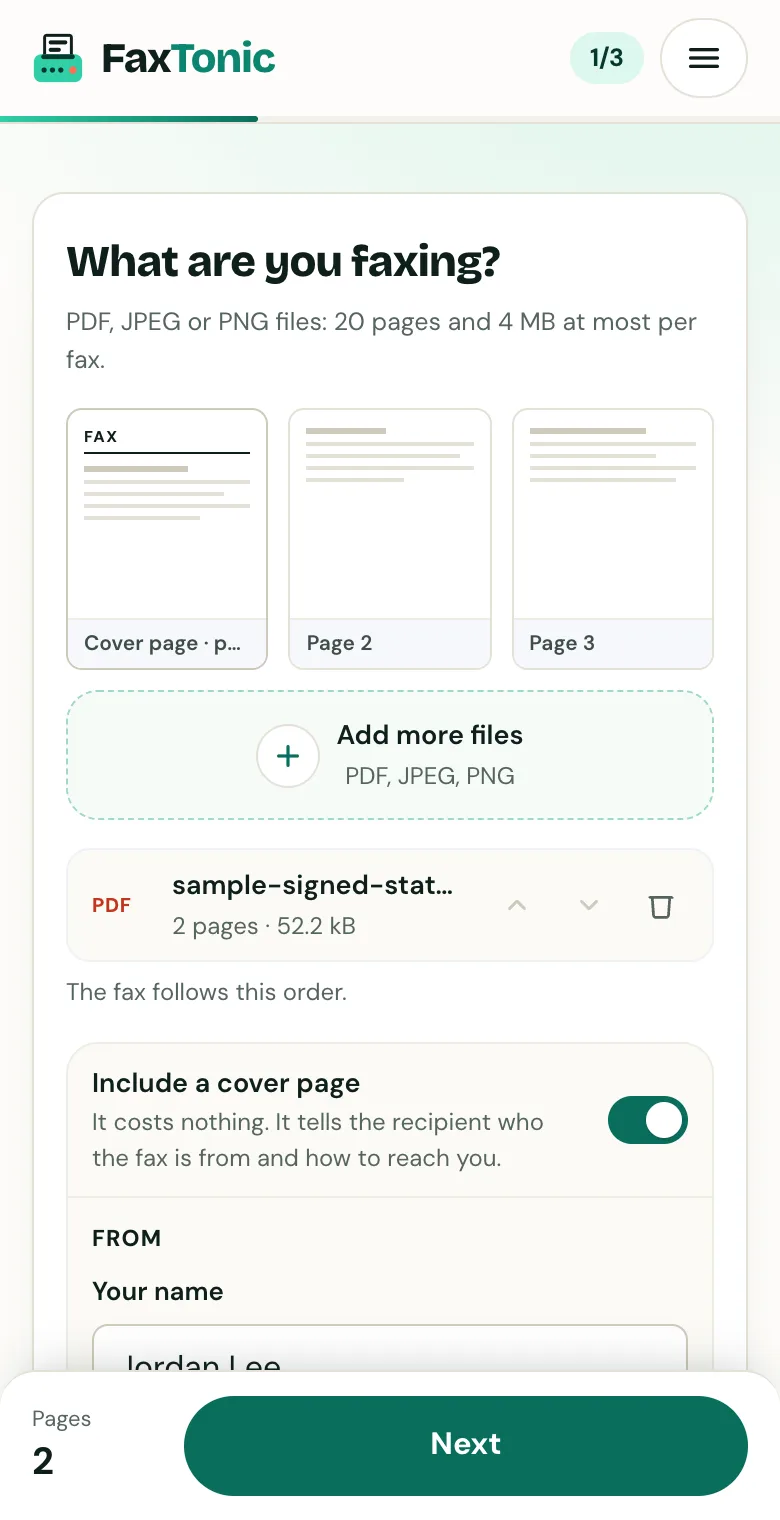
Add your file. The cover page is free, and you can turn it off.
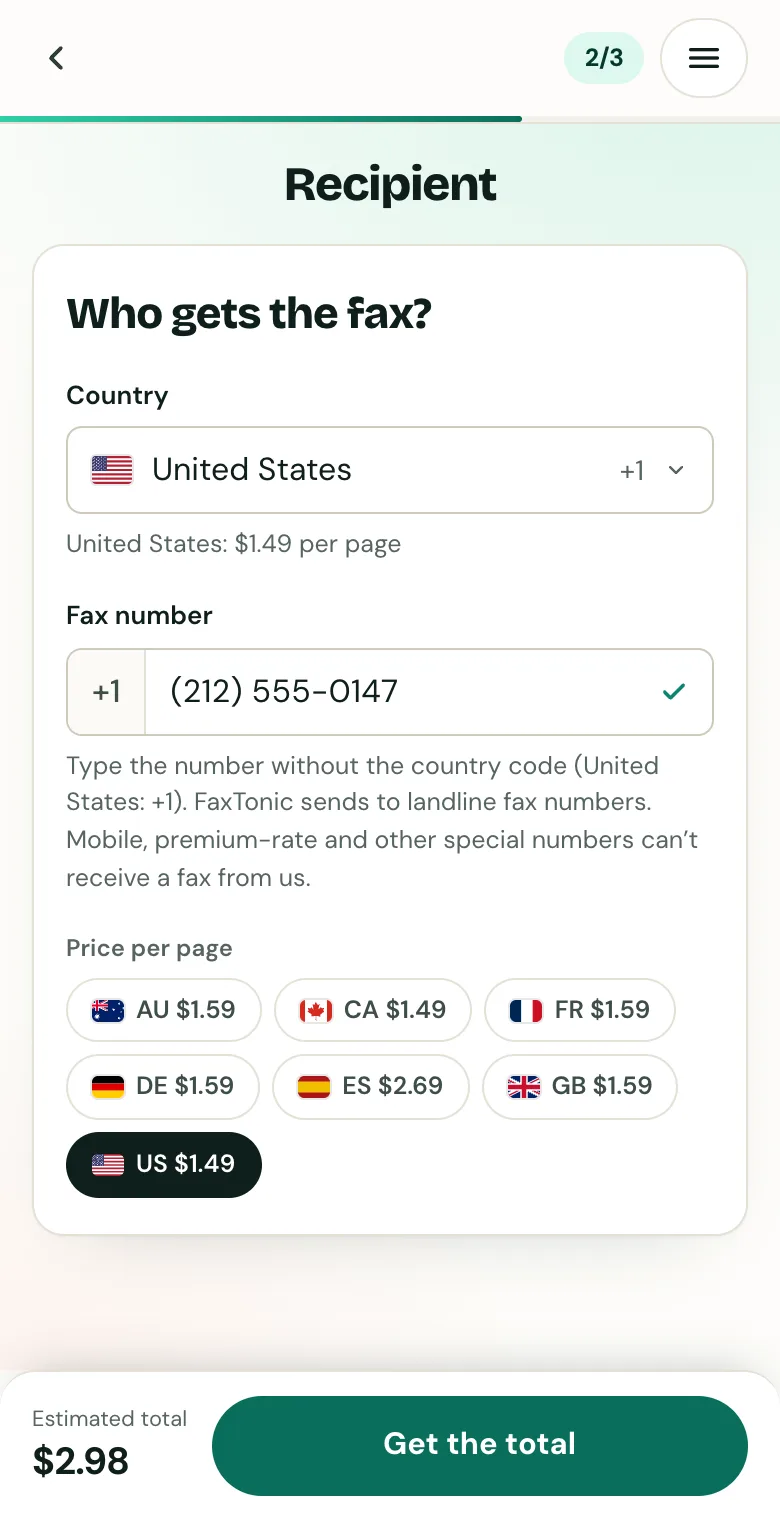
Pick the country and type the fax number.
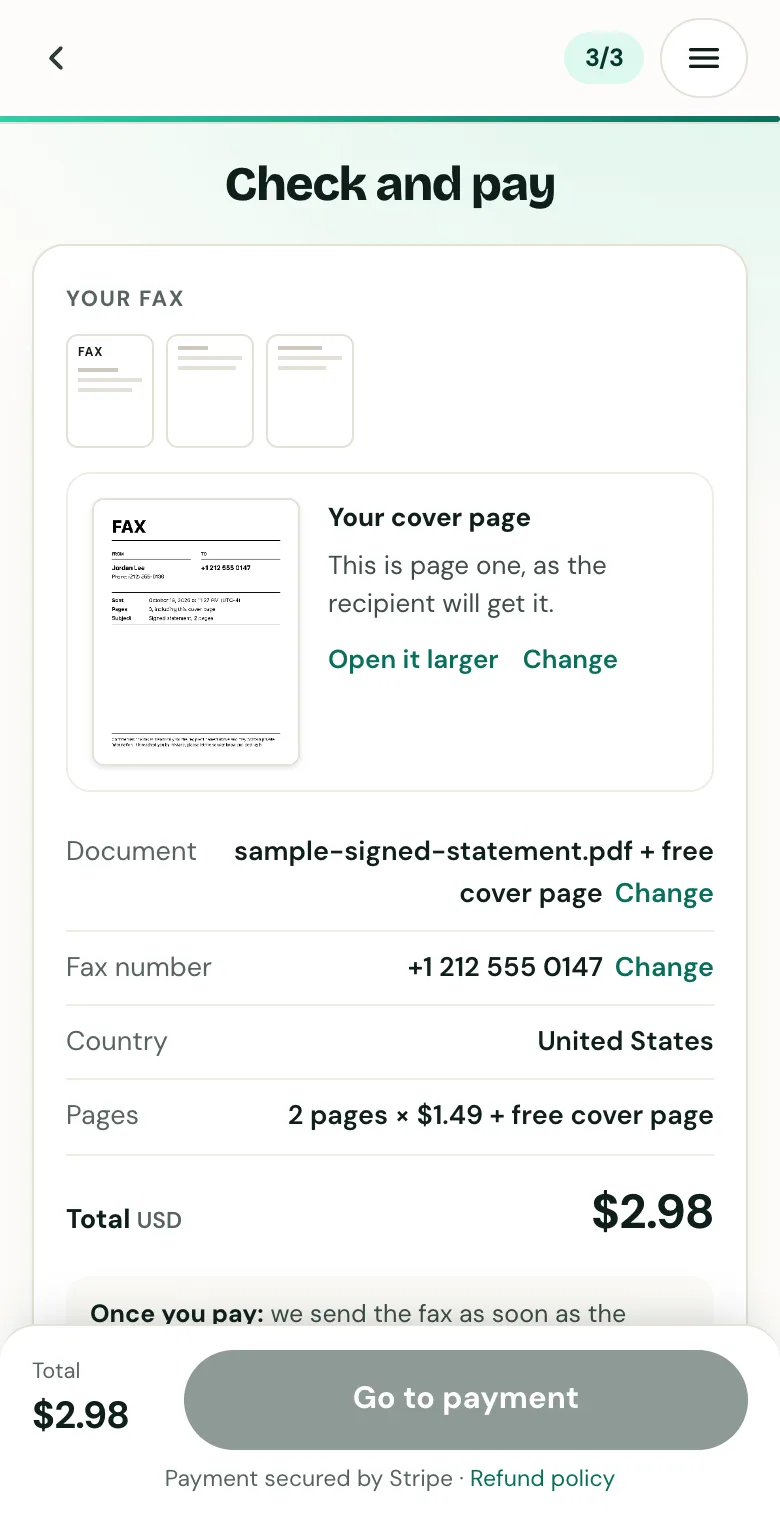
Check the cover page, the number and the total before you pay.
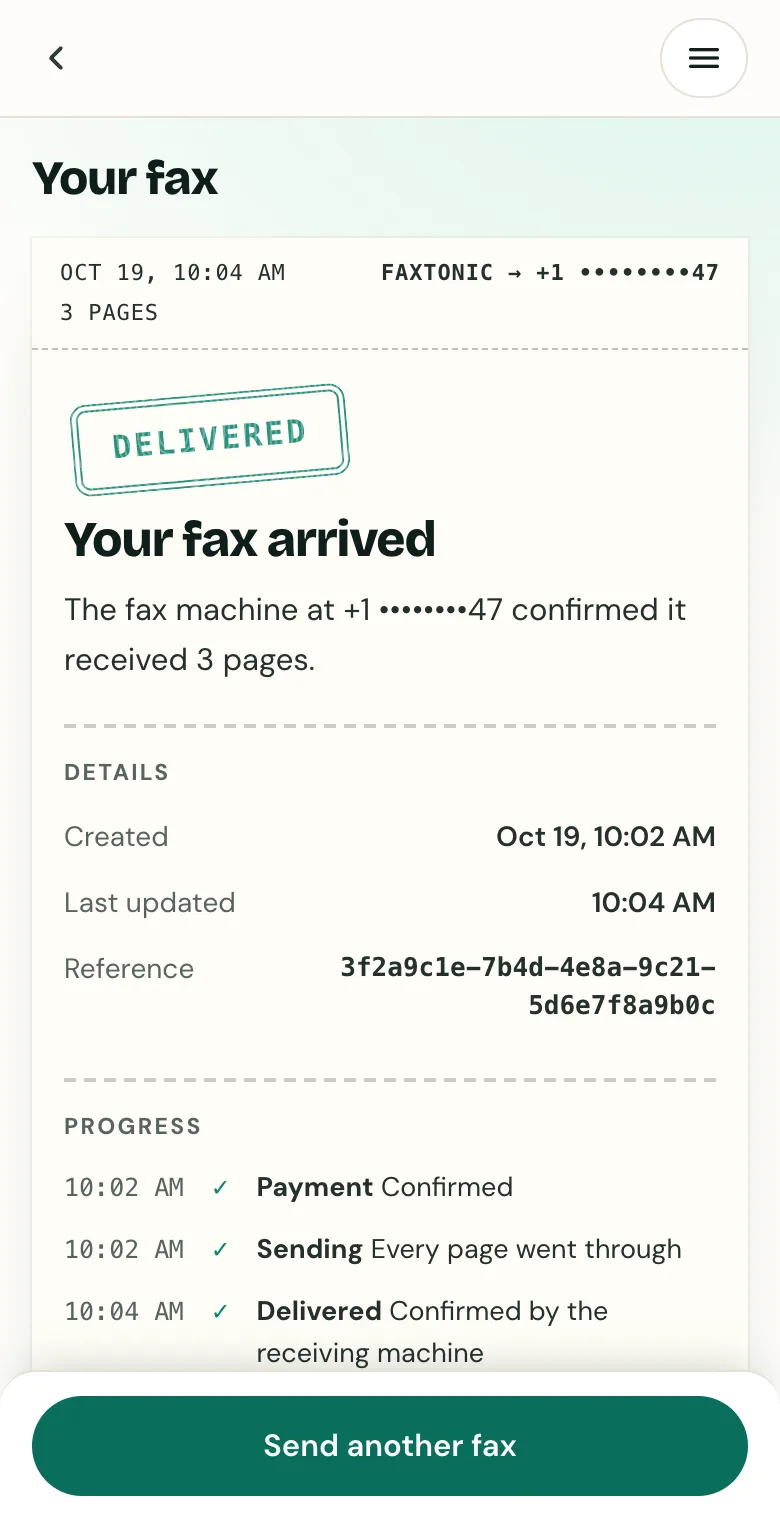
Follow your fax: the status page shows when it’s delivered.
Official sources
- Apple: How to scan documents on your iPhone or iPad (Files and Notes)
- Apple: Scan text and documents in Notes using the iPhone camera (saved as a PDF)
- Apple: Work with PDFs in Notes on iPhone
- Apple: Using HEIF or HEVC media on Apple devices (Most Compatible)
- Apple Developer: High Efficiency Image File Format, WWDC17 (the .heic extension)
- Apple: Crop, rotate, flip, or straighten photos on iPhone
- Google: Scan documents with Google Drive (Android)
- Google: Download a file from Google Drive (Android)
- Google: Edit your photos in Google Photos (Android)
FaxTonic is an independent fax service. It isn’t affiliated with or endorsed by any agency, insurer, court or company named in this guide. Fax numbers and rules change: when a letter or form gives you a fax number, use that one.