



On this page
What to write on each line
Here’s what goes on each line:
- To: the person the fax is for, and their department or organization. One fax number can serve a whole office, so a name and a department help the pages reach the right desk. Spell the name the way it appears on their letter or website. Without a name, the department alone will do, such as “Human Resources” or “Billing”.
- Fax: the recipient’s fax number, the one you’re sending to. If the fax reaches the wrong machine, it shows whoever finds it where it was supposed to go.
- From: your name, and your organization if you’re writing for one. Use the name the recipient has on file for you, the one on your application, account or claim.
- Phone and email: a number where you can be reached during the day, so the recipient can call if a page is missing or hard to read. An email address is optional. A fax number of your own helps only if you can receive faxes on it. FaxTonic only sends faxes and doesn’t give you a number, so when you send with FaxTonic, your phone number, and your email address if you add it, are how the recipient gets back to you.
- Date and time: when you send the fax. A date on a cover sheet doesn’t show that the fax arrived. With FaxTonic, the status page is your record of sending: once the fax is delivered, it shows that the receiving machine confirmed it, and when FaxTonic recorded that.
- Pages: the total number of pages, and whether it includes the cover sheet, as in “4 pages, including this one”. The recipient can then check that nothing is missing. If you split a long document into two faxes, say so on each cover sheet: “Part 1 of 2”. With FaxTonic, put it in the subject.
- Subject: one line saying what the fax is: the name or number of a form, “Signed lease renewal”, or the reference the recipient asked you to quote, such as a claim, case or application number.
- Note: two or three lines at most. Say what’s enclosed, what you’d like the recipient to do, and anything they need to know first: “Signed application and a copy of my lease, as requested in your letter of October 12. Please call me if a page is missing.”
- Confidentiality notice: a line at the foot of the page saying the fax is meant only for the recipient named on it, and asking anyone else who gets it to tell the sender and destroy it.
In the United States, an FCC rule says a fax sent from a computer or other electronic device must show the date and time it was sent, who sent it and a phone number, on the first page or on every page. FaxTonic’s cover page prints your name and the date and time you selected Get the total, just before paying, and your phone number once you fill it in.
If you’re faxing from a library or a store, have these details ready before you go. Where to send a fax covers what else to ask and bring.
What a confidentiality notice can and can’t do
The notice asks whoever picks up the fax to treat it as private; it can’t make them. It tells someone who got your fax by mistake that it isn’t meant for them and what to do with it, and it signals to whoever sorts the faxes at the other end that this one should go straight to the person named.
It can’t stop anyone from reading the pages, on the cover sheet or behind it, and it can’t bring back a fax that went to the wrong number. Nor does it make the cover sheet a safe place for private details.
Sending the fax to the right number does more than any notice. FaxTonic checks that a number is valid for its country, but it can’t tell whether it’s the one you meant, so check the digits against the recipient’s letter or website before you pay.
What to leave off the cover sheet
The cover sheet is the first page anyone at the receiving machine sees, and that machine may be shared, with pages left in its tray until someone collects them. Put on it only what’s needed to get the fax to the right person, and keep the rest for the pages behind it:
- ID numbers and account details: Social Security numbers, bank and card numbers, dates of birth, passwords. If the recipient needs a number to match the fax to your file, use the reference they gave you, such as a claim or case number, unless their instructions ask for something else on the cover sheet.
- The private part of the message: health details, money problems, the reasons for a request. A subject such as “Leave request” is enough; the reasons go in the letter behind it.
- A long letter: if the note runs past a few lines, write a letter instead and put it right behind the cover sheet.
- Decoration: logos, dark headers, shaded boxes and photos. A fax arrives in black and white: dark areas turn into dense dots and pale ones can fade, so a busy template makes the lines that matter harder to read. See how to prepare a document for fax.
When the recipient has their own cover sheet
Some recipients give you a cover sheet to use, or tell you what yours must show. Their instructions come first, because their sheet can be how the fax gets matched to your file.
The U.S. Geological Survey’s fax instructions for job applicants are a good example. Applicants print a cover sheet from the agency’s online system for each document requested. It carries machine-readable data that identifies the applicant, the document and the vacancy, so the instructions say not to edit it or write anything on it. It also has to be the first page: the instructions warn that a commercial fax provider’s own cover sheet must not go on top of it, and that the agency can’t process a fax whose first page is anything else. Each document goes in a separate fax, with its own cover sheet.
Social Security’s barcode request letters work the same way: the barcode page has to be page one (see how to fax Social Security and the VA).
Other recipients only say what the cover sheet should show. The IRS instructions for Form 8918, for instance, list everything from “Subject: Form 8918” to the number of pages faxed, and say not to put sensitive information such as a Social Security number on the cover sheet (see how to fax the IRS).
With FaxTonic, the cover page, when it’s on, is always page one, and your files follow in the order you set.
- Their sheet has to be page one, or a machine reads it: turn off FaxTonic’s cover page and make their sheet the first page of the fax, either as the first page of your PDF or as a file of its own moved to the top of the list with the arrows. With FaxTonic’s cover page on, their sheet would be page two.
- They give you a sheet but don’t say where it goes: it’s still their cover sheet. Fill in the lines it has for you, put it first and turn off FaxTonic’s cover page: one cover sheet is clearer than two.
- They only list what the cover sheet should show: FaxTonic’s cover page can be that sheet. Fill in the fields to match their list, put anything that has no field of its own in the note, and compare the preview with the list before you pay.
- They sent a form to fill in, not a cover sheet: the form is part of your document (if it needs your signature, see how to sign a PDF and fax it). Keep FaxTonic’s cover page on top, unless the form says it’s your cover page, as New York’s unemployment Forms TC 403HR and TC 403HA do (see how to fax the New York Department of Labor).
With FaxTonic’s cover page off, FaxTonic adds no page of its own, and your name and phone number appear only where their sheet or your own pages show them. The received pages can still show a one-line fax header with the date and time, FaxTonic’s sending number and the page number.
If their cover sheet comes as a PDF, add that file rather than a photo of a printout, and fill in only what it asks for. A paper sheet can be scanned with the rest of your pages: see how to fax a paper document with your phone.
How FaxTonic’s free cover page works
FaxTonic’s cover sheet is called the cover page, and every fax starts with one unless you turn it off. It costs nothing: it counts as one of the 20 pages a fax can have, but it isn’t charged. You fill it in on the first step, below your files.
| On the page | Where it comes from |
|---|---|
| From | Your name, the only required field, then Your organization, Your phone number and Your email address |
| To | Recipient name and Recipient organization, plus the fax number you type in the next step, which takes the name’s place if you leave the name empty |
| Sent | Added for you: the date and time you select Get the total, in your device’s time zone with its offset from UTC, such as “UTC-5” |
| Pages | Added for you: the whole fax, cover page included, as in “3, including this cover page” |
| Subject | The Subject field |
| Note | The Note field |
| The notice at the foot | Print a confidentiality notice at the bottom, on by default |
- Only Your name is required, but fill in Your phone number too: it’s how the recipient reaches you, and it’s the one detail the FCC rule above lists that the page can’t print without you. If your name is empty, FaxTonic asks for it before going on: “Add your name: a cover page has to say who the fax is from.”
- Every other field is optional, and an empty one isn’t printed, so the page has no blank lines.
- The page has a large “FAX” heading, you on the left and the recipient on the right, then the Sent, Pages and Subject rows, the note, and the confidentiality notice at the foot. There’s no FaxTonic logo or advertising on it.
- Keep the note short: a note too long for the page gets cut off, so check the preview.
- The notice reads: “Confidential: this fax is meant only for the recipient named above and may contain private information. If it reached you by mistake, please let the sender know and destroy it.” It’s on by default. Keep it on.
- Before you pay, the last step shows Your cover page: page one as the recipient will get it. Select Open it larger to read it at full size.
- To send without it, turn off Include a cover page. The fax then starts with your first page, and FaxTonic adds no page of its own. Do that when the recipient’s own cover sheet has to come first, when your document already has 20 pages, or when you’d rather use a cover sheet you made yourself. Save that one as a PDF, since Word files aren’t accepted, and add it as the first file.
Send a fax and its cover page with FaxTonic
- Open FaxTonic and add your file. If the recipient gave you their own cover sheet, put it first and turn off Include a cover page.
- Otherwise, fill in the cover page: Your name, a phone number, the recipient and a subject. Leave the confidentiality notice on.
- Choose the country and type the fax number. It’s printed on the cover page as well.
- Check Your cover page and the total, $1.49 a page to the United States with the cover page free, then pay by card.
- Keep the status page’s link, and check back until the fax shows as delivered. If it doesn’t go through, see what to do when a fax doesn’t go through.
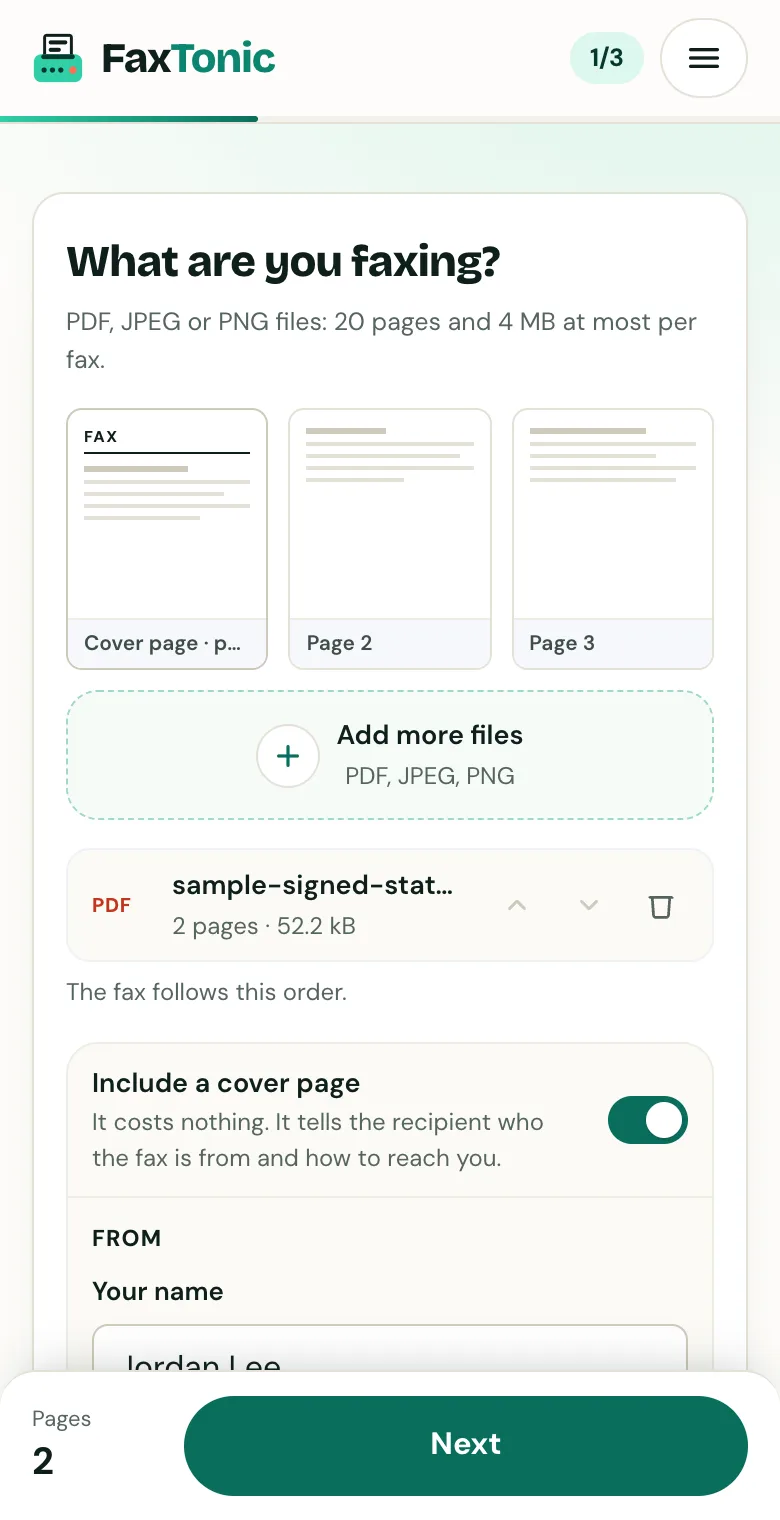
Add your file. The cover page is free, and you can turn it off.
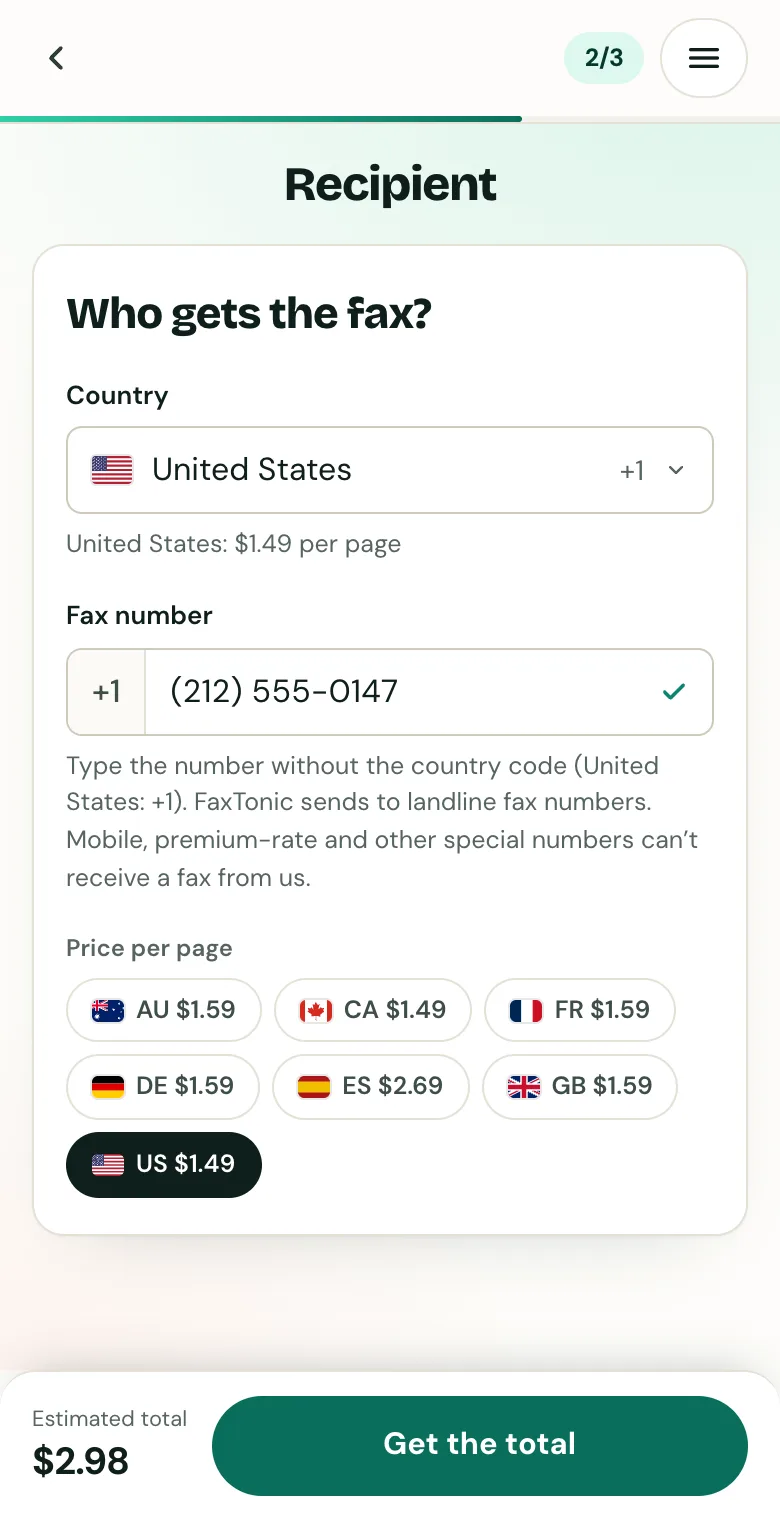
Pick the country and type the fax number.
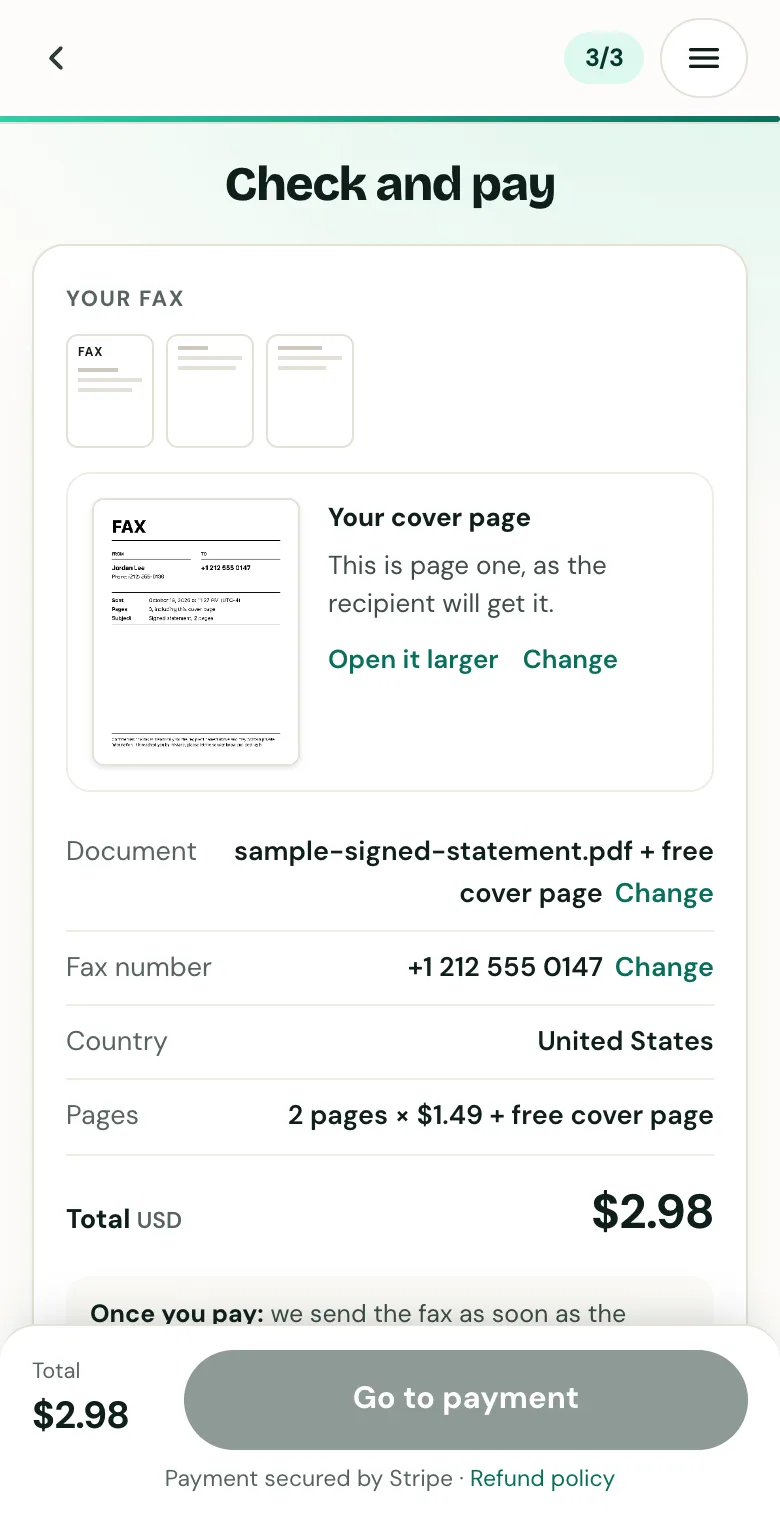
Check the cover page, the number and the total before you pay.
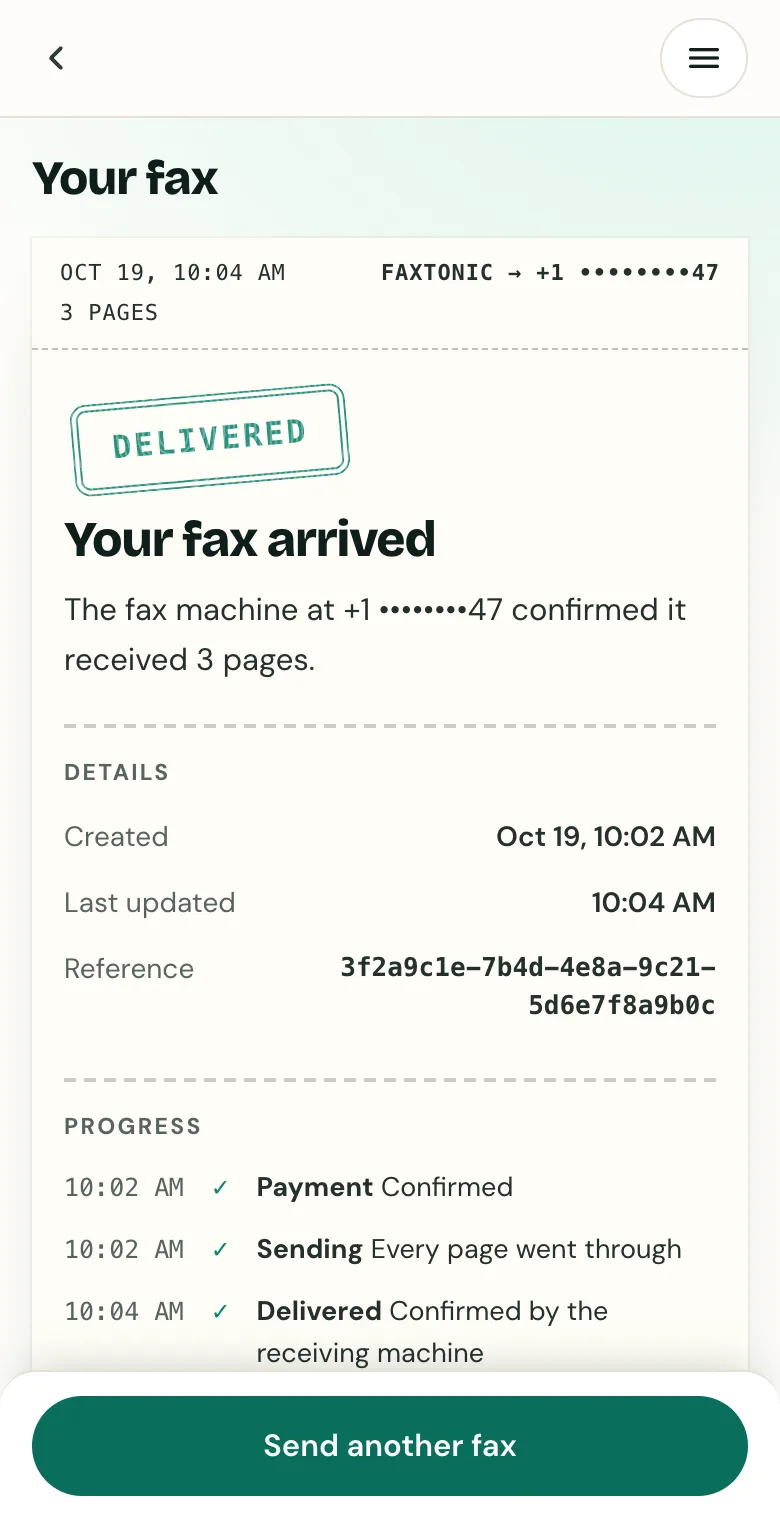
Track your fax: the status page shows when it’s delivered.
Official sources
- U.S. Geological Survey: Auto-Requested Fax Instructions (job applicants)
- IRS: Instructions for Form 8918, where to file (fax cover sheet)
- eCFR: 47 CFR 68.318(d), identification of the sender of a fax
FaxTonic is an independent fax service. It isn’t affiliated with or endorsed by any agency, insurer, court or company named in this guide. Fax numbers and rules change: when a letter or form gives you a fax number, use that one.