



On this page
In Word for Windows
- Select File > Save a Copy. If you’ve never saved the document, select File > Save As.
- Select Browse and choose the folder for the PDF.
- In the drop-down list of file types, select PDF.
- Select Save.
Before you select Save, select Options in the same window to adjust the PDF:
- Page range: choose the pages to include if only part of the document goes in the fax.
- Publish what: keep Document selected. Document showing markup puts tracked changes in the PDF, and so on the fax.
- Encrypt the document with a password: leave it unselected. FaxTonic can’t add a PDF that has a password.
In Word for Mac
- Choose File > Save As.
- In the Save As box, type a name that’s different from the document’s (for example, add “fax” to the end of the name). Microsoft advises this so you end up with two files: the Word document you can keep editing, and the PDF.
- In the File Format box, select PDF. If Word then offers Best for electronic distribution and accessibility (uses Microsoft online service) and Best for printing, select Best for printing.
- Select Export.
Microsoft says the online service can use only fonts Microsoft has the legal rights to and swaps a custom font for one of those. The issue it notes with Best for printing is that hyperlinks may not convert correctly, which doesn’t matter on a fax.
You can also use the Mac’s own Print dialog: choose File > Print, then Save as PDF from the PDF pop-up menu. See how to fax from a Mac.
In Word for the web
At the top of the screen, select File > Export > Download as PDF, then select Download to confirm. The PDF goes wherever your browser saves downloads. Skip Download as PDF with comments, which puts every comment in the PDF.
No Word? Use Google Docs or Pages
- Google Docs: upload the Word file to Google Drive and double-click it there to open it in Google Docs. Then choose File > Download and pick PDF. For a large document in Chrome, Google suggests File > Print instead: next to Destination, select Save as PDF, then click Save.
- Pages on a Mac opens .doc and .docx files: drag the Word file onto the Pages icon in the Dock (double-clicking it opens Word, if you have it). Then choose File > Export To > PDF, click Save, type a name, choose a folder from the Where pop-up menu, and click Export. Look over the layout before you export, since fonts and spacing can shift between Word and Pages. More on Pages in how to fax from a Mac.
What can change in the PDF
- Tracked changes and comments go into the PDF when Word includes markup: Document showing markup in Word for Windows, Download as PDF with comments on the web. Microsoft’s steps for Word for Mac don’t mention markup, so look at the PDF. If changes or comments show up, deal with them in Word and save the PDF again: accept or reject the changes with Accept and Reject on the Review tab, and delete the comments with Delete on the same tab. Hiding them isn’t the same: Microsoft notes that changes and comments you haven’t accepted, rejected, or deleted stay in the document.
- Paper size: FaxTonic fits every page whole onto a US Letter page. A Letter page fills it exactly. An A4 page comes out slightly smaller, which is no reason to change the paper size. A Legal page is shrunk by about a fifth, and a landscape page to the width of an upright page, so their text comes out smaller.
- Fonts: if a font can’t be embedded in the PDF, Microsoft says a PDF reader might show another font in its place. FaxTonic reads the PDF the way a PDF reader does, so the fax can show the stand-in font too. In Word for Windows, the Bitmap text when fonts may not be embedded option, under Options, turns such text into images so that it looks as it does in Word.
- Color: the fax comes out in black and white, so pale gray or light-colored text and highlighting can fade. See how to prepare a document for fax.
Check the PDF before you send it
- Open the PDF and scroll through every page. Look for tables cut off at the edge, text in the wrong font, and a blank page at the end. FaxTonic sends and charges every page in the file, blank ones included.
- Count the pages and compare with the count FaxTonic shows once you add the file. A fax can have up to 20 pages, including the free cover page. A longer document has to go as two faxes.
- Add the .pdf file, not the .docx. The two often sit side by side with the same name. The file picker usually grays out or hides the Word file, and if you drag it onto the page anyway, FaxTonic says it can’t be faxed: only PDF, JPEG, and PNG files work.
- Enclosures can go in the same fax as separate files. To drop or reorder pages inside a PDF, see how to prepare a document for fax.
- Signing: if the document needs a signature, sign the PDF, or print, sign, and scan it. See how to sign a PDF and fax it.
Fax a Word document with FaxTonic
- Save the document as a PDF and check it.
- Open FaxTonic and drop the PDF on the Drop your files here area, or pick it from your device. Add any enclosures in the order they should arrive, with the arrows next to each file.
- Fill in the free cover page with at least your name, or switch it off if your letter already says who it’s from. For what to put on it, see what to put on a fax cover sheet.
- Choose the country and type the fax number.
- Check the page count and the total ($1.49 a page to the United States), then pay by card.
- Keep the link to the status page. It shows Delivered once the receiving machine confirms the fax.
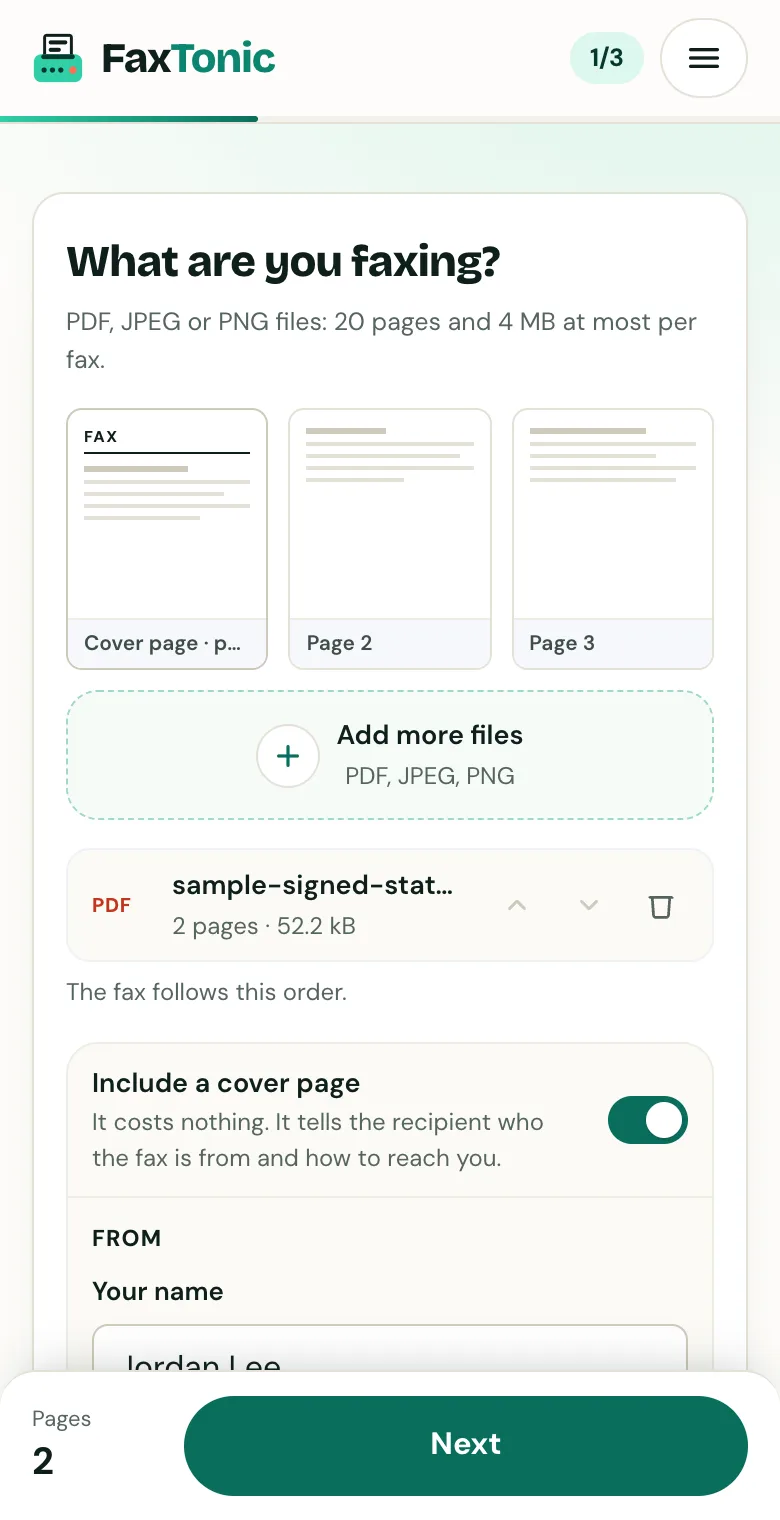
Add your file. The cover page is free, and you can turn it off.
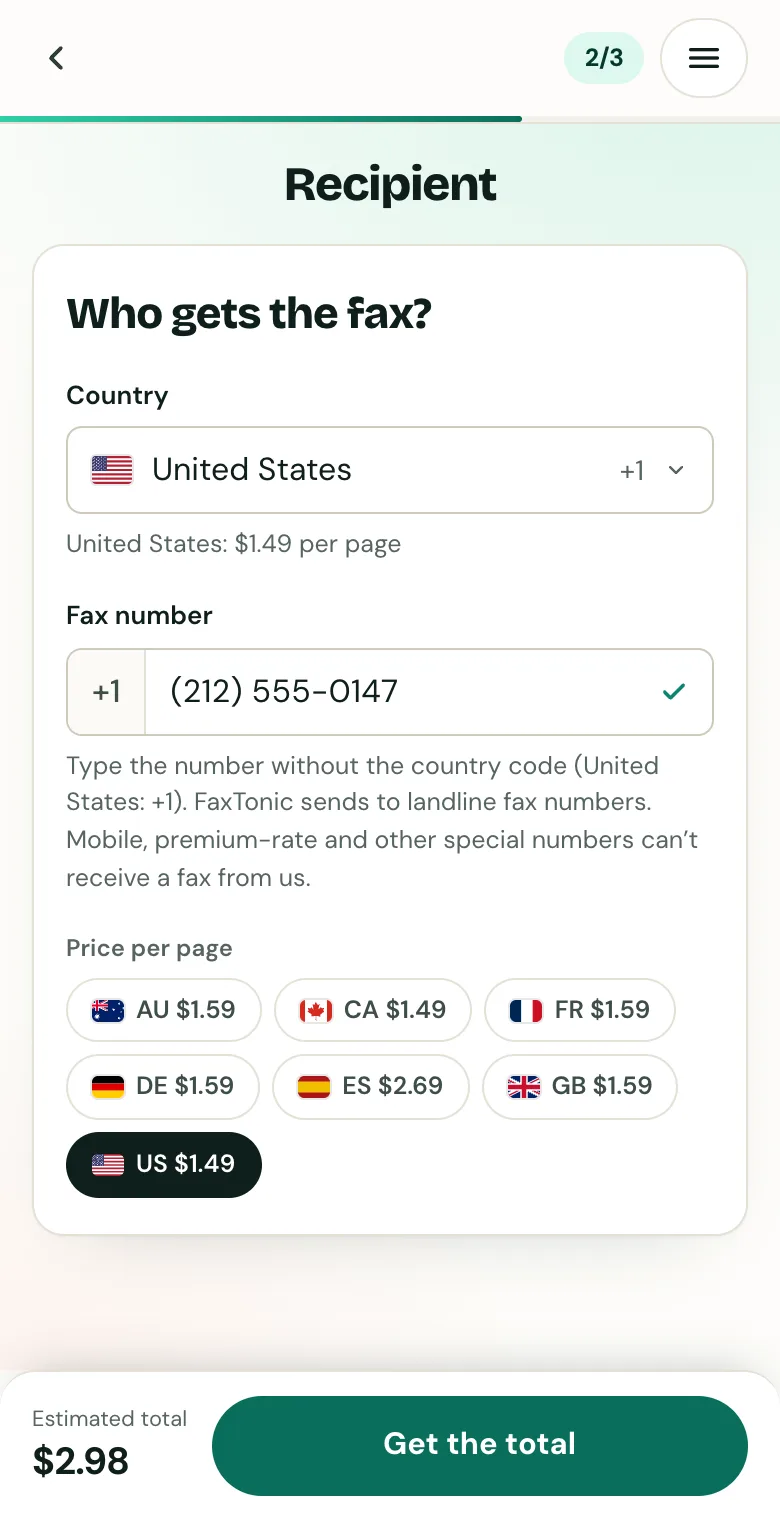
Pick the country and type the fax number.
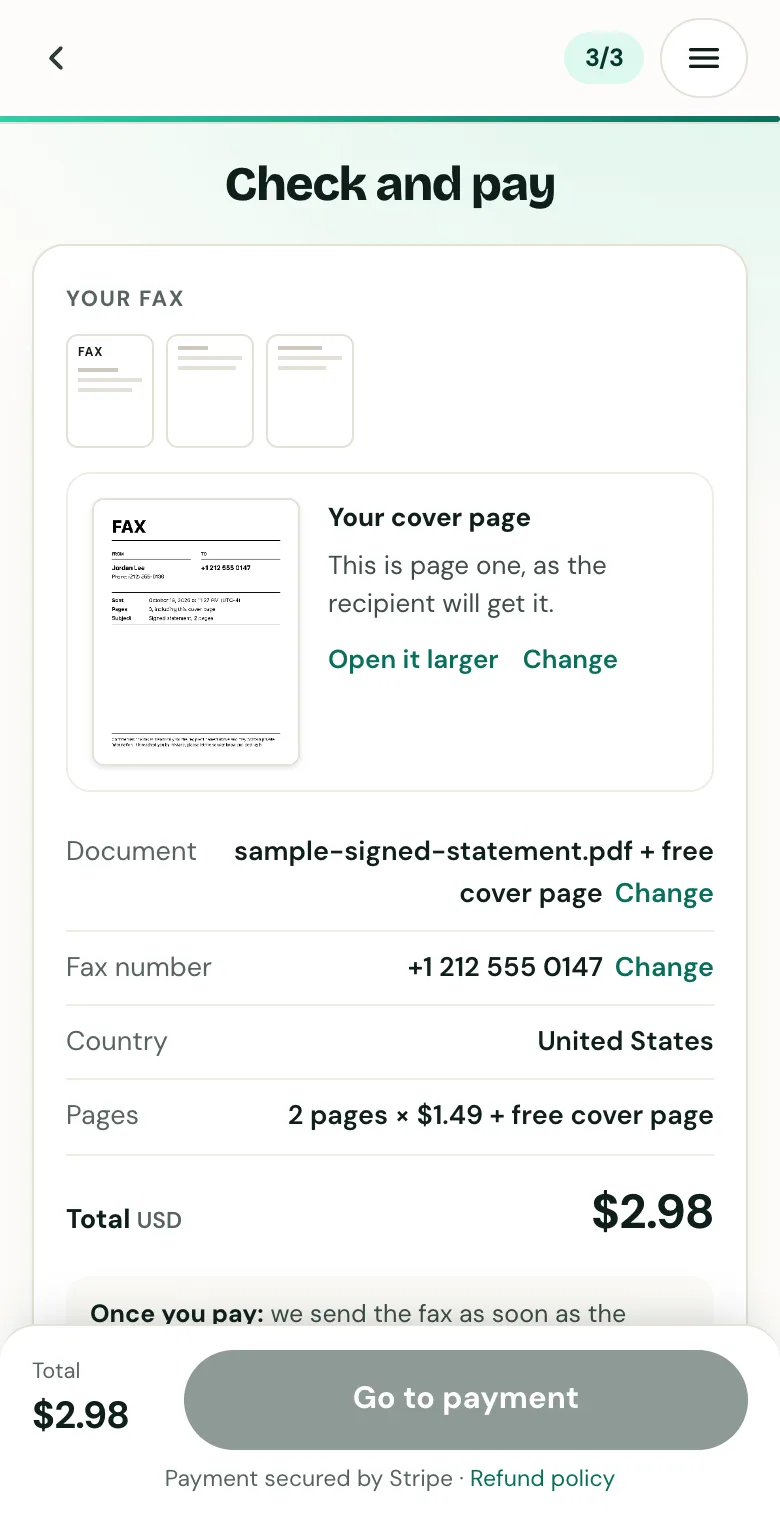
Check the cover page, the number and the total before you pay.
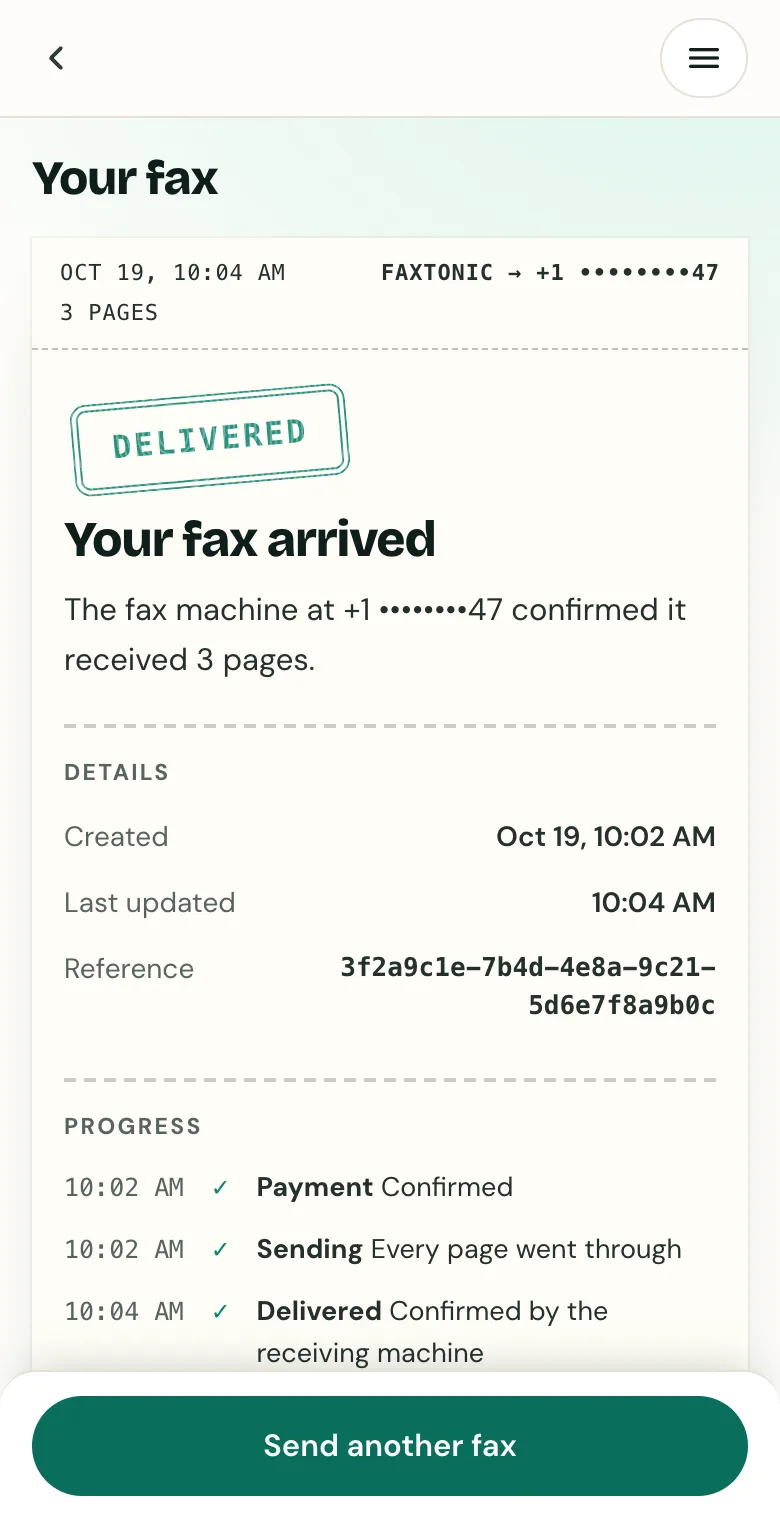
Track your fax: the status page shows when it’s delivered.
Official sources
- Microsoft: Save or convert to PDF or XPS in Office desktop apps (Word for Windows options; Word for Mac notes)
- Microsoft: Save or convert to PDF on your Mac (Word for Mac)
- Microsoft: Create accessible PDFs (the Options button; the PDF choices in Word for Mac)
- Microsoft: Export Word document as PDF (Word for the web)
- Microsoft: Track changes in Word (hidden changes stay in the document)
- Microsoft: Insert, delete, or change a comment (Word for Mac)
- Google: Create, view, or download a file (Google Docs)
- Google: Work with Office files (open a Word file from Drive in Google Docs)
- Apple: Open or close a document in Pages on Mac (Word documents)
- Apple: Convert to Word, PDF, or another file format in Pages on Mac
FaxTonic is an independent fax service. It isn’t affiliated with or endorsed by any agency, insurer, court or company named in this guide. Fax numbers and rules change: when a letter or form gives you a fax number, use that one.