


What you need
- The document as a PDF, JPEG, and PNG file, up to 20 pages per fax, cover page included.
- The recipient’s fax number, ideally from their letter, form or website.
- A card to pay for that fax. There’s no account and no subscription.
There’s nothing to install: no Chrome extension, no Android app and no printer driver.
A Google Doc or a web page
In Google Docs, choose File > Download and pick PDF. The file goes to your Downloads folder.
For a web page or a document with no download option, press Ctrl + P, set Destination to Save as PDF, then click Save.
Google notes that files in Downloads can be deleted when your Chromebook runs low on space, so send the fax soon or move the file to Google Drive first.
A Word file has to be saved as a PDF first: see the FAQ.
A paper document
Use the Chromebook’s camera: open Camera, choose Scan, then Document, and take the picture. Choose Save as PDF. For several pages, choose Multi-page before you save.
Scans are saved in Files > My files > Camera. Lay each page flat in good light: a fax usually arrives in black and white, so the text needs to be sharp and dark enough to read.
Send it from Chrome
- Open FaxTonic in Chrome and add your file. You can add several files and set their order. The cover page is free.
- Choose the destination country and type the fax number.
- Check the total, $1.49 a page to the United States, and pay by card.
- Keep the status page open, or copy its link, to follow the fax until it’s delivered.
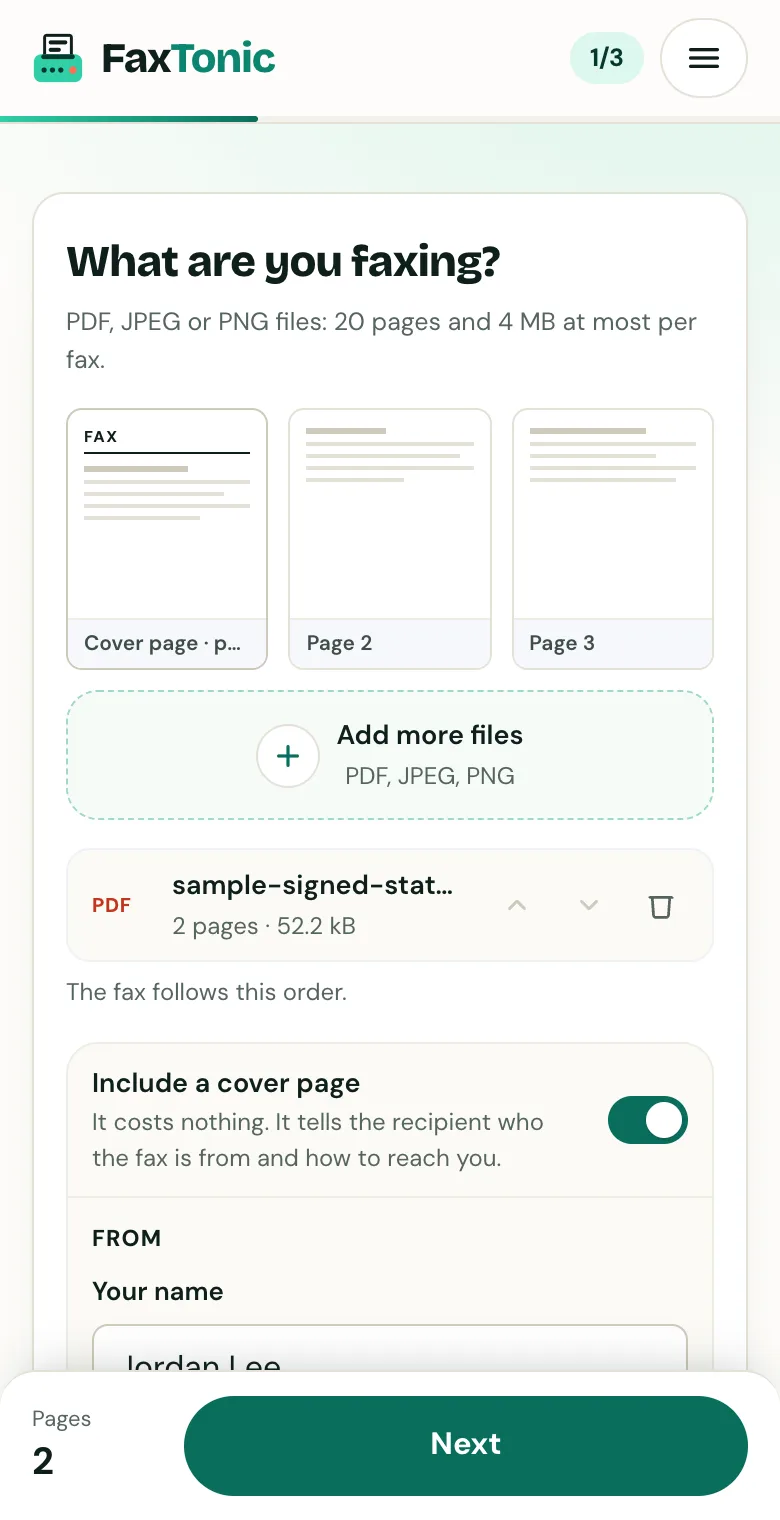
Add your file. The cover page is free, and you can turn it off.
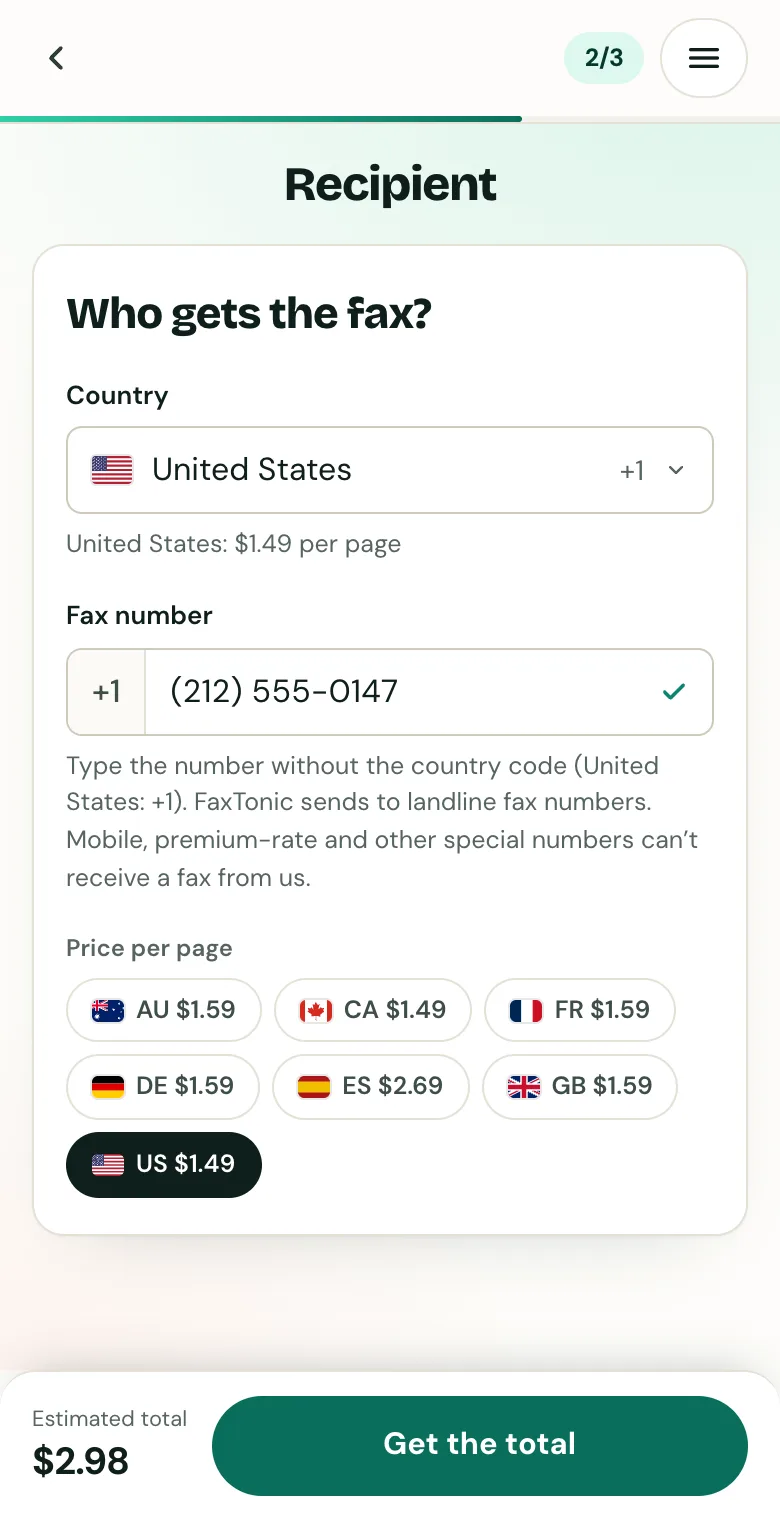
Pick the country and type the fax number.
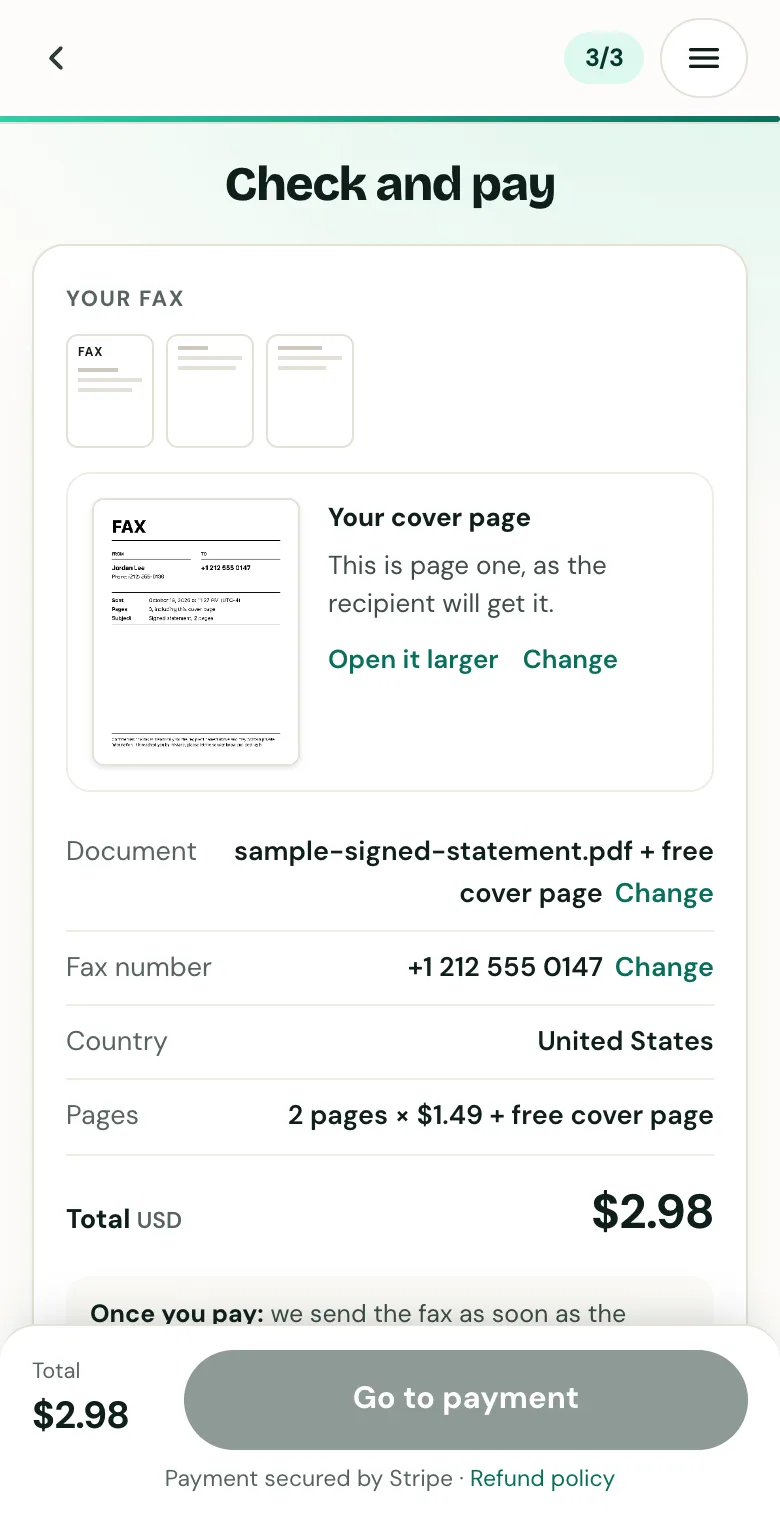
Check the cover page, the number and the total before you pay.
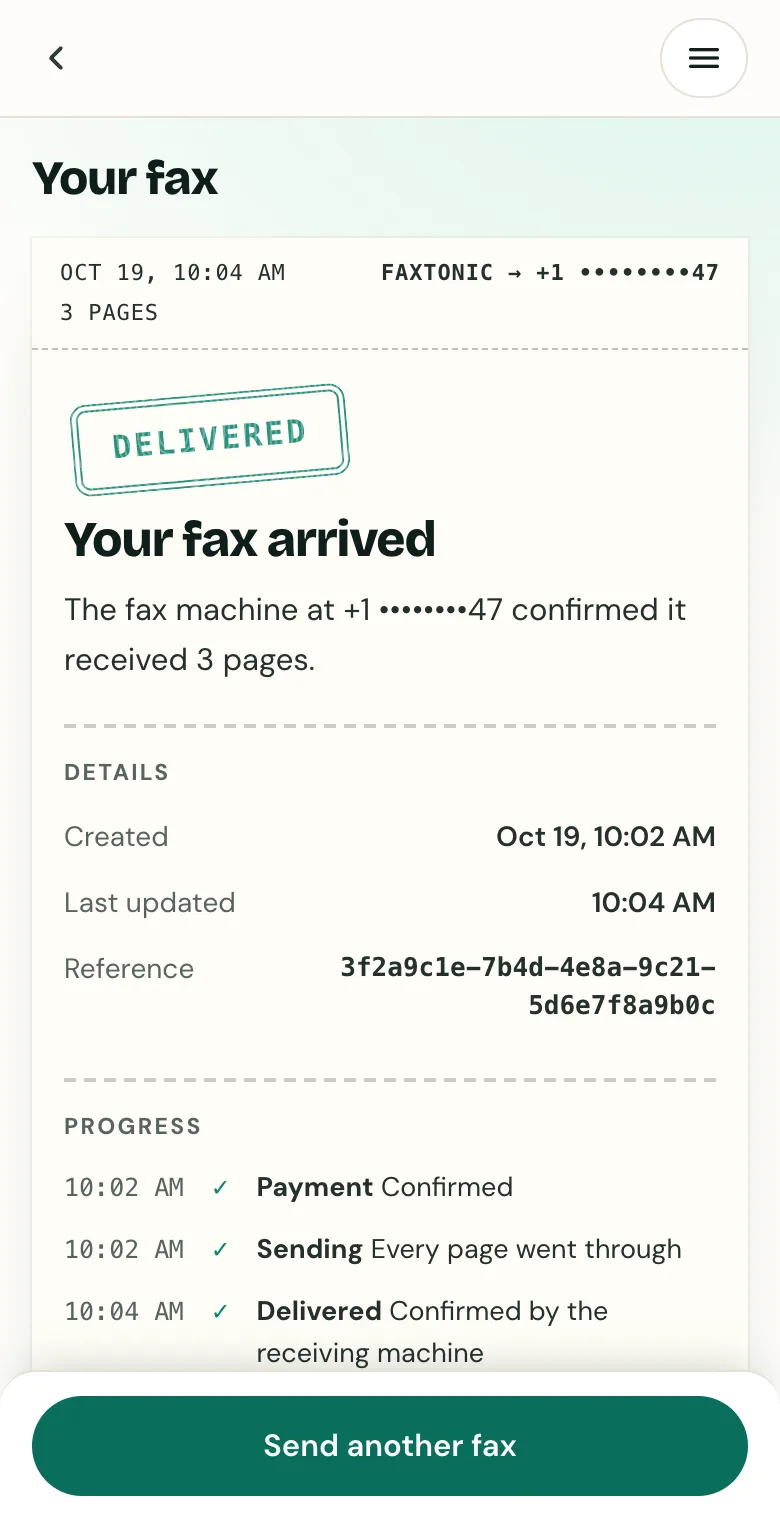
Follow your fax: the status page shows when it’s delivered.
Good to know
- FaxTonic sends to United States, Canada, United Kingdom, France, Germany, Australia, and Spain. For numbers abroad, see how to send an international fax from the US.
- It can’t receive faxes, and it doesn’t give you a fax number.
- A cell phone can’t receive a fax, and in the United States a cell number looks like any other. See can you fax to a cell phone number?
- If the fax can’t be delivered, the refund is automatic. See how refunds work.
Official sources
- Google: Use camera features on your Chromebook (scan documents)
- Google: Create, view, or download a file (Google Docs)
- Google: Print from Chrome (Save as PDF)
- Google: Open, save, or delete files on your Chromebook
- Google: Keep your downloaded files from being deleted (Chromebook)
FaxTonic is an independent fax service. It isn’t affiliated with or endorsed by any agency, insurer, court or company named in this guide. Fax numbers and rules change: when a letter or form gives you a fax number, use that one.