


On this page
Use a file FaxTonic can send
FaxTonic takes PDF, JPEG, and PNG files. Anything else has to be turned into one of those first:
- Word, Pages or Google Docs: save or download the document as a PDF. Every one of them has the option, and the FAQ explains it for Word.
- iPhone photos: an iPhone can save photos as .heic files, a format FaxTonic doesn’t list. If a photo won’t add, scan the page instead, as described below, or set Settings > Camera > Formats to Most Compatible so the camera takes JPEG photos from then on.
- A PDF protected with a password can’t be added, even one that opens without asking for it but blocks printing or editing. Save an unprotected copy and add that one.
Stay within the page and size limits
- Pages: a fax can have up to 20 pages, and the free cover page counts as one. With a longer document, turn off the cover page or send it as two faxes.
- Size: a fax can be up to 4 MB once FaxTonic has prepared it for sending. What counts is the prepared fax, not the size of your original file: every page becomes a black-and-white fax page, so a large photo is fine. Pages filled with photos or grey shading take the most room. If a document still comes out too large, send it as two faxes.
Send several files as one fax
You can add several files to the same fax, for example a signed form as a PDF and a photo of an ID page. FaxTonic shows them in a list: move each file earlier or later, and the fax follows that order, after the cover page.
FaxTonic sends every page of each file. To leave out a page, or change the order of pages inside a PDF, edit the PDF first. On a Mac, Preview can delete, move and rotate pages, and combine two PDFs into one. Preview saves changes as you make them, so choose File > Duplicate first to keep the original as it was.
Make it readable in black and white
A fax is printed in black and white, so FaxTonic turns every page into black and white before sending it. Text on a white background comes through best.
- Very pale marks fade: light pencil, pastel ink, highlighter and faint stamps can come out as dots or disappear. Use dark ink, and darken a pale scan before you send it.
- Colored or grey backgrounds come out as a pattern of dots, denser the darker they are, which makes the text on them harder to read. Very pale ones turn white.
- Page size: each page of a PDF is fitted whole onto a US Letter page. An A4 page is shrunk slightly, and a landscape page is shrunk to fit the width of an upright page, so its text comes out smaller. A photo is centered with a margin and never enlarged, so a small, low-resolution photo stays small.
- Small print: if the original is hard to read at its normal size, it will be harder to read on a fax.
Scan or photograph a paper document
- iPhone: in the Files app, tap the More button (…), then Scan Documents. Scan each page, tap Keep Scan, then Done, choose a location and tap Save. When you add your document to FaxTonic, pick the scan from Files.
- Android: in the Google Drive app, tap the Camera button at the bottom right and take a picture of each page. Tap Done, name the file, choose PDF and tap Save.
- Chromebook: use the Camera app’s scan mode. See how to fax from a Chromebook.
- A scanner or printer with a scanner: scan to PDF, in black and white or grayscale.
For a photo, lay the page flat in good light, shoot from straight above, and fill the frame with the page. Avoid shadows across the text: a shadow can come out as a dark patch.
If the document needs a signature, see how to sign a PDF and fax it.
Send it with FaxTonic
- Open FaxTonic and add your file, or several files in the order they should arrive. The cover page is free.
- Choose the country and type the fax number.
- Check the page count and the total, $1.49 a page to the United States, and pay by card.
- Follow the fax on its status page until the receiving machine confirms it.
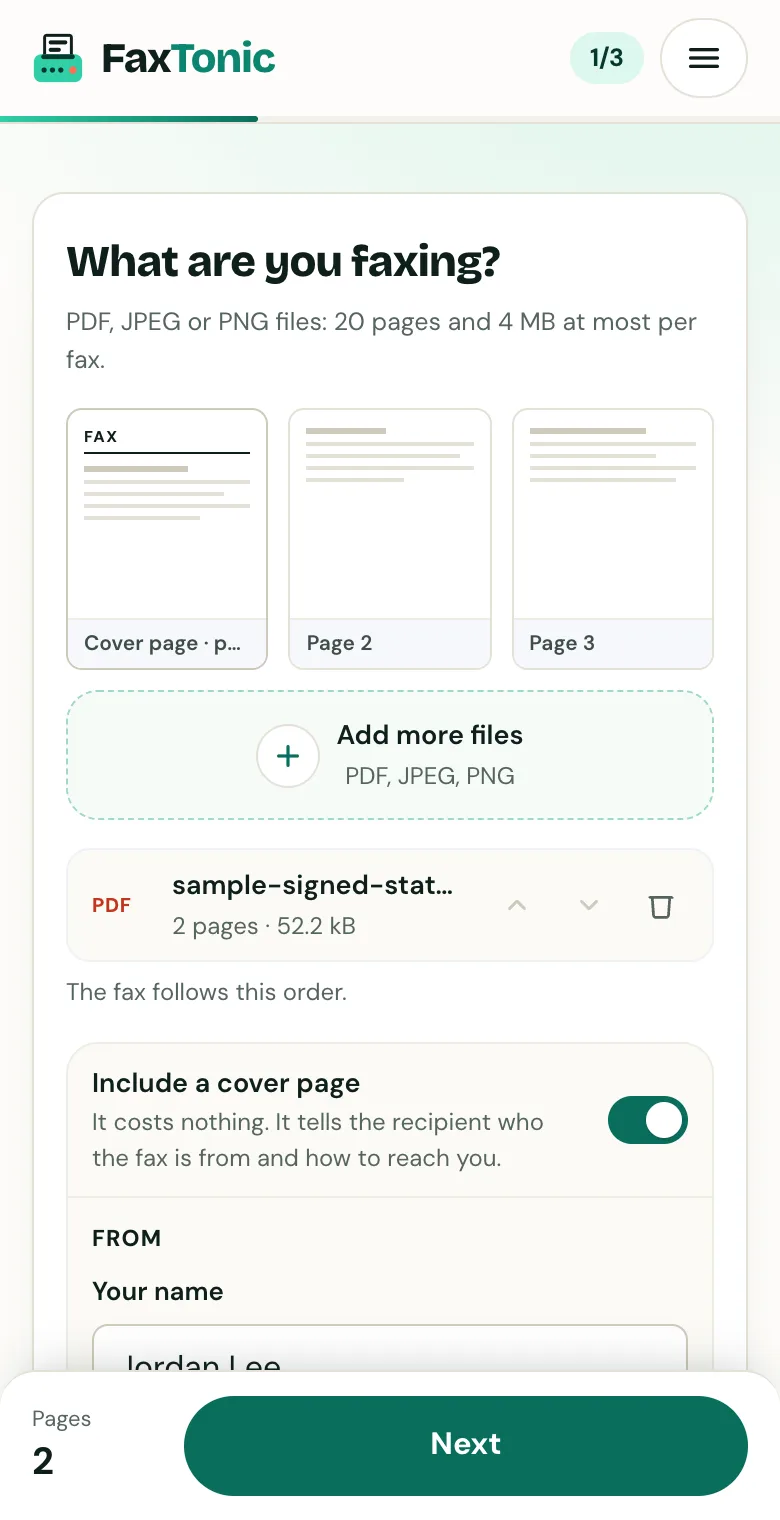
Add your file. The cover page is free, and you can turn it off.
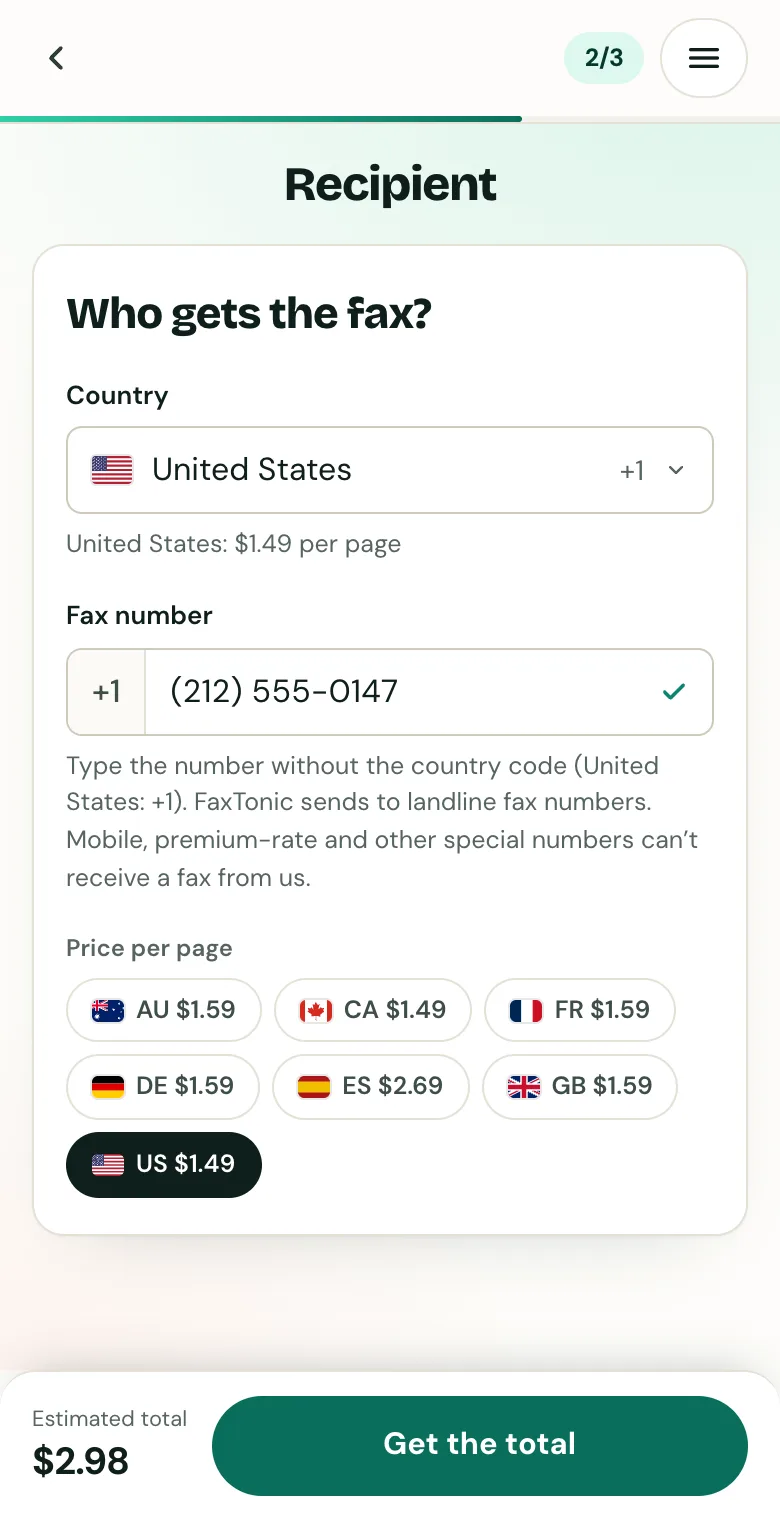
Pick the country and type the fax number.
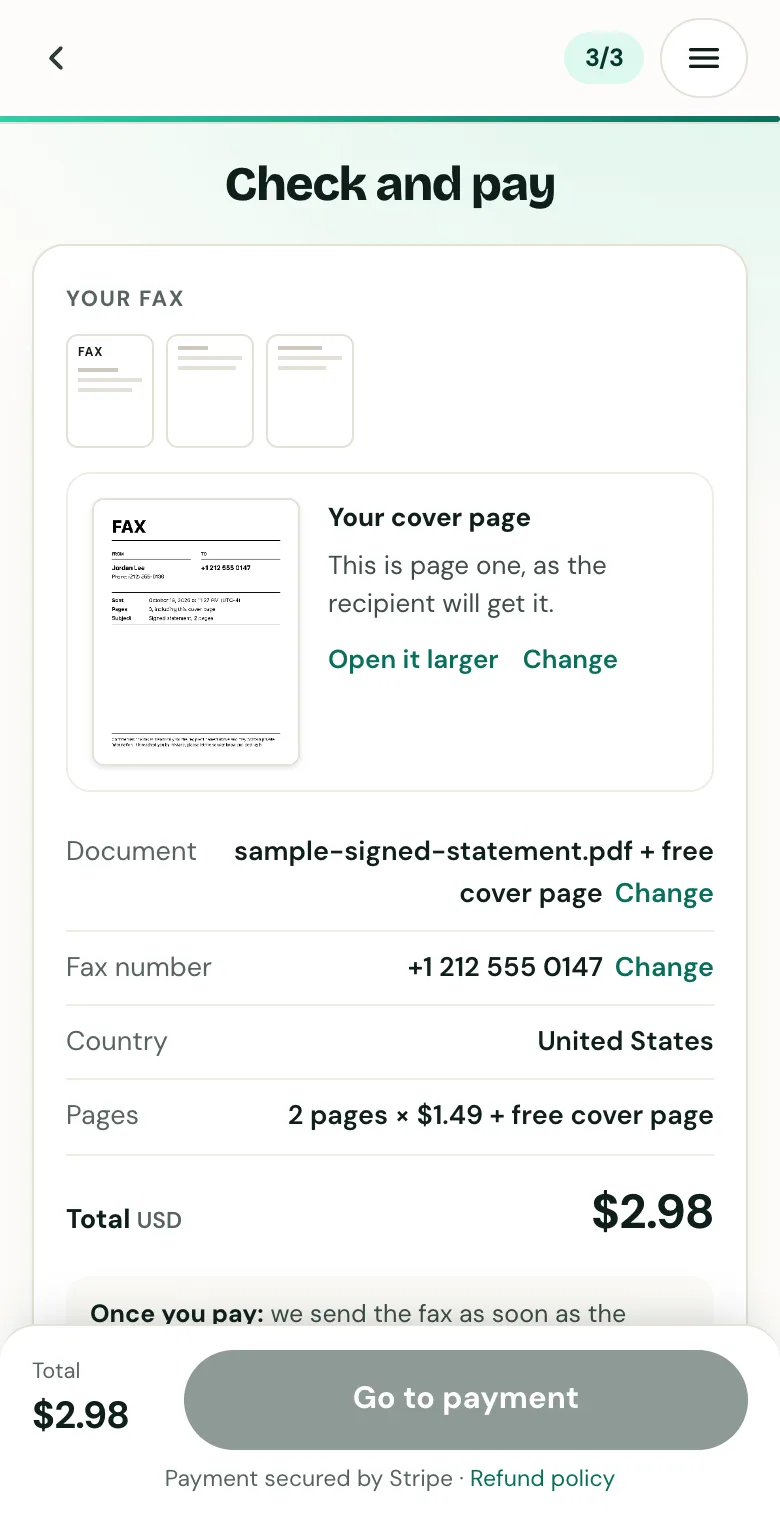
Check the cover page, the number and the total before you pay.
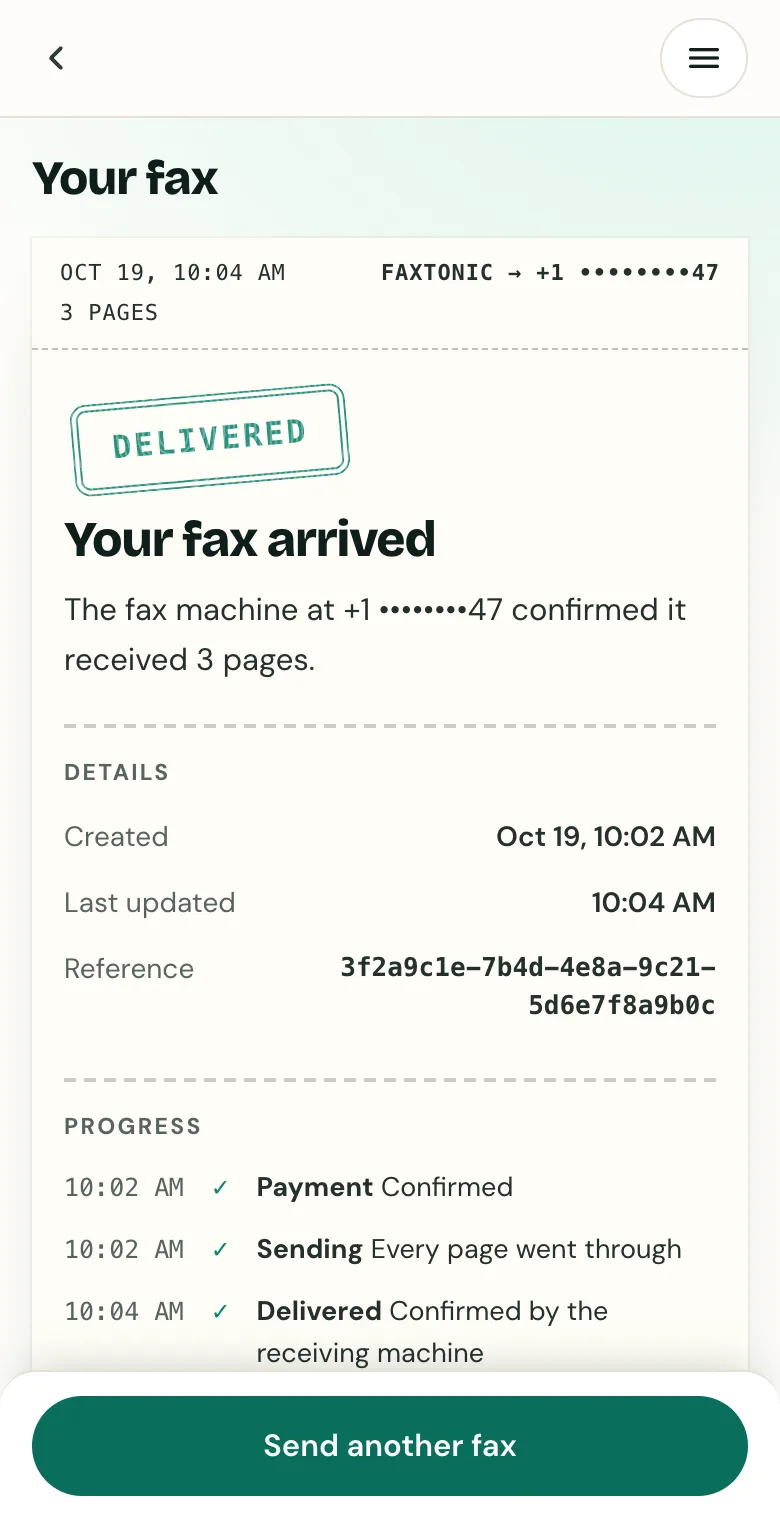
Follow your fax: the status page shows when it’s delivered.
Official sources
- Apple: How to scan documents on your iPhone or iPad
- Apple: Using HEIF or HEVC media on Apple devices
- Google: Scan documents with Google Drive (Android)
- Google: Create, view, or download a file (Google Docs)
- Apple: Export to Word, PDF, or another file format in Pages on Mac
- Microsoft: Save or convert to PDF in Office desktop apps
- Apple: Add, delete, or move PDF pages in Preview on Mac
- Apple: Combine PDFs in Preview on Mac
- Apple: Crop or rotate a PDF in Preview on Mac
FaxTonic is an independent fax service. It isn’t affiliated with or endorsed by any agency, insurer, court or company named in this guide. Fax numbers and rules change: when a letter or form gives you a fax number, use that one.