



On this page
What Windows Fax and Scan needs
On its own, Windows Fax and Scan can’t send a fax over the internet. The fax provider Microsoft includes works with analog fax modems, and when you set the program up, it offers to connect to a fax modem or to a fax server. Without a fax modem connected to a phone line, or a fax server on your company’s network, it can’t send a fax.
A fax modem, like a fax machine, doesn’t always work on a phone line from an internet phone service: the transmission can time out. The FCC advises checking that fax devices are compatible before a line moves to a new network.
Where to find it in Windows 11
- It isn’t installed by default in versions of Windows 11 after 22H2: it’s an optional feature. To add it, go to Settings > System > Optional features (on some versions, Settings > Apps > Optional features). Select View features next to Add an optional feature, check Windows Fax and Scan, then select Next and Add. Windows downloads it through Windows Update, so the PC has to be online.
- It isn’t available on Arm-based PCs, in Windows 11 or Windows 10.
- Windows protected print mode removes it. This print security mode has to be turned off before you can add the program again.
Fax from a PC without a modem
FaxTonic works in the browser, with no modem, no phone line and nothing to install: add the file, type the number and pay for this fax only. The cover page is free, and a page to the United States costs $1.49.
FaxTonic takes PDF, JPEG, and PNG files. First, turn your document into one of them:
- A Word document: select File > Save a Copy, then Browse, choose PDF in the drop-down list and select Save.
- Anything you can print: in the print window, choose the Microsoft Print to PDF printer and select Print, then name the file and select Save.
- A paper document: with a scanner, use the Windows Scan app, free in the Microsoft Store if it isn’t installed. Under File type, choose JPEG or PNG, two formats FaxTonic takes. By default, it saves scans in the Scans folder inside Pictures. Scan each page, then add the files to the fax in order.
- A document to sign: see how to sign a PDF and fax it.
To keep it readable once it’s in black and white, see how to prepare a document for fax.
Good to know
- FaxTonic sends to these countries: United States, Canada, United Kingdom, France, Germany, Australia, and Spain. It sends faxes but doesn’t receive them, and doesn’t give you a fax number.
- FaxTonic doesn’t install as a printer: you don’t use it from the Print menu, you add the file on the sending page.
- A cell phone can’t receive a fax, and in the United States and Canada FaxTonic can’t tell a cell number from a landline: see can you fax a cell phone?
- If a fax doesn’t go through, FaxTonic refunds it automatically: the price minus a fee of $0.30 + 2.9%, or all of it if our fax provider refused the fax when we submitted it. See the refund policy and what to do when a fax doesn’t go through.
Fax from Windows with FaxTonic
- Save the document as a PDF, or scan it as a JPEG or PNG file.
- Open FaxTonic in your browser and add the file. On the free cover page, add your name, your phone number or email address, and a subject.
- Choose the country and type the fax number.
- Check the total and pay by card.
- Follow the fax on its status page until the receiving machine confirms it.
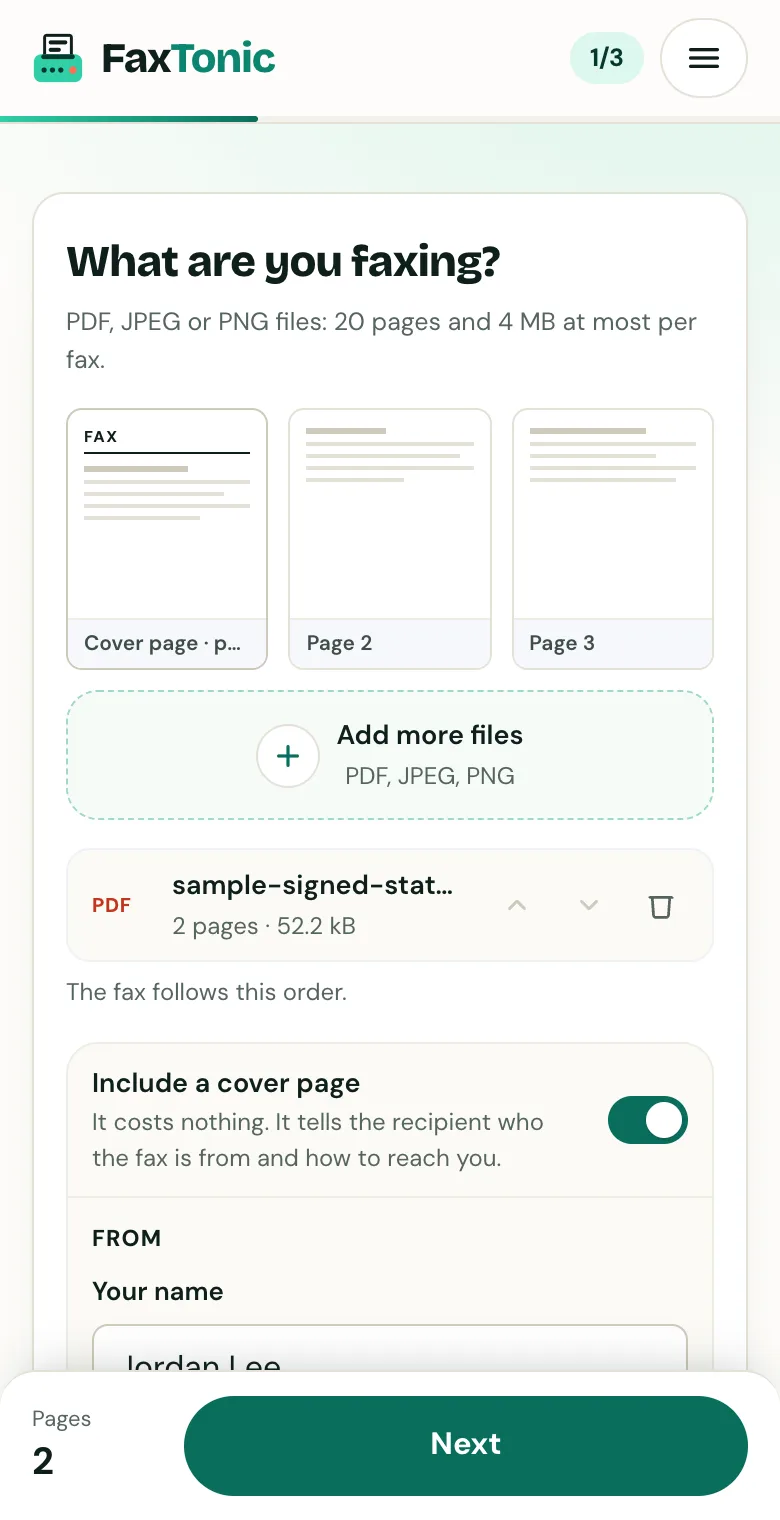
Add your file. The cover page is free, and you can turn it off.
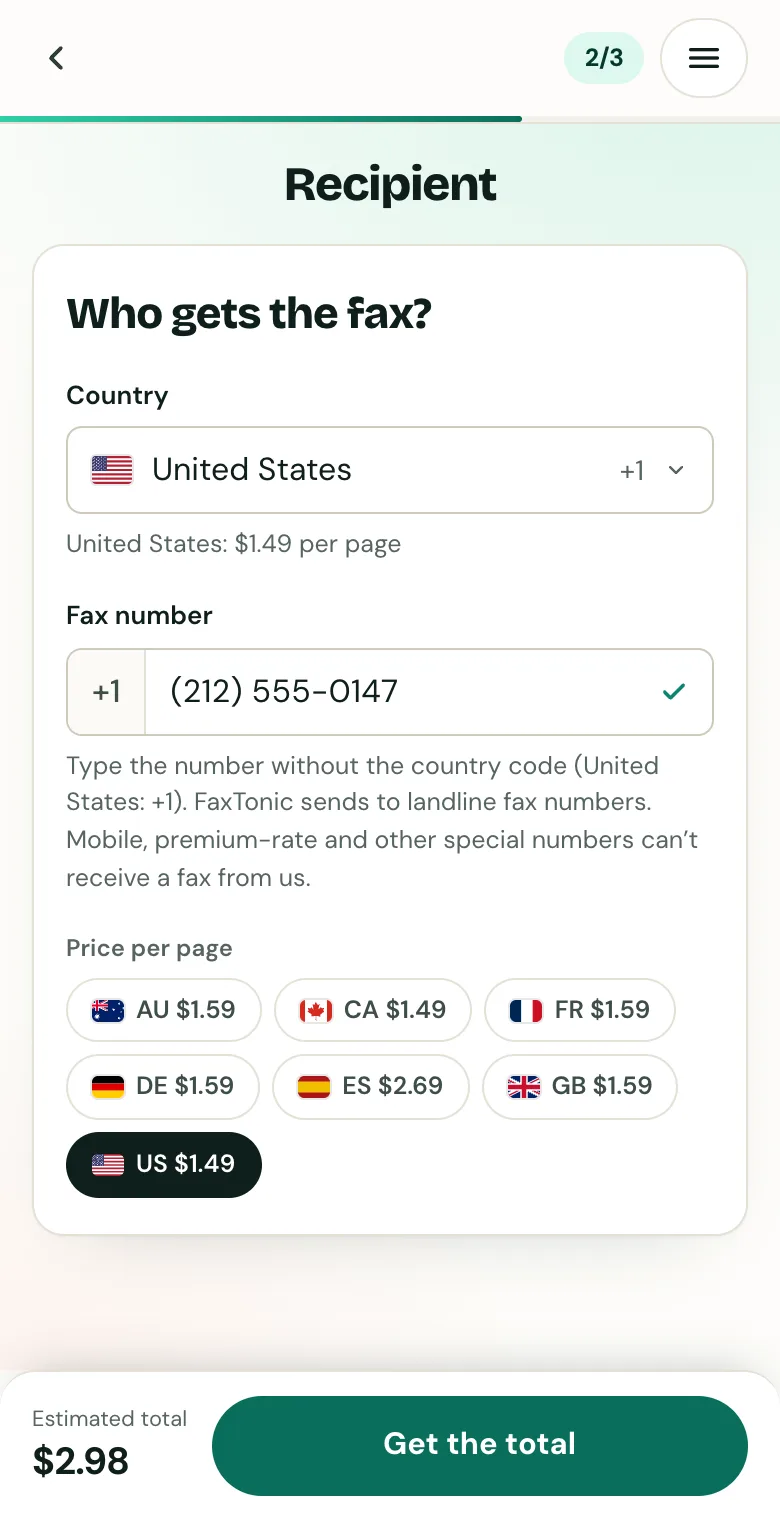
Pick the country and type the fax number.
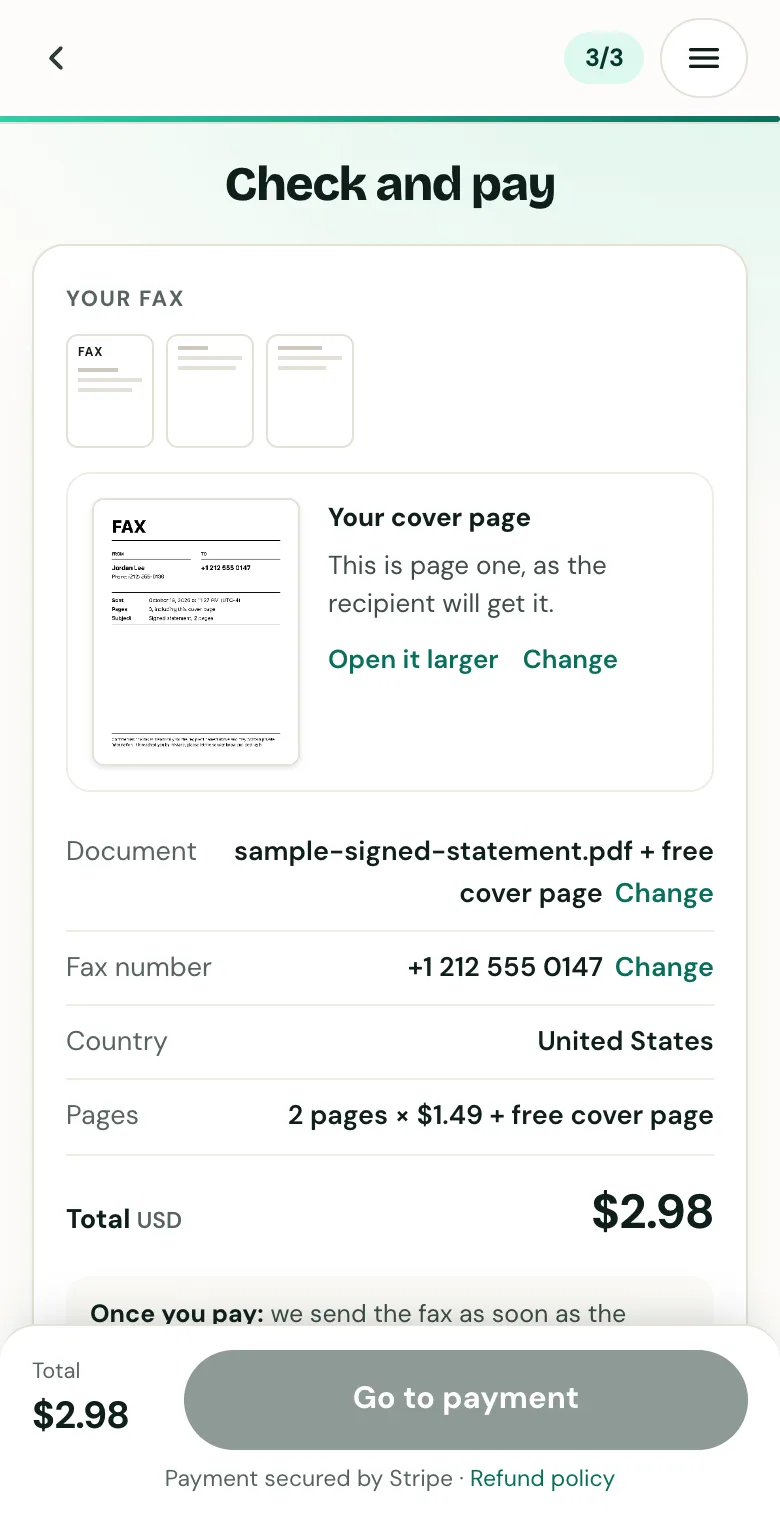
Check the cover page, the number and the total before you pay.
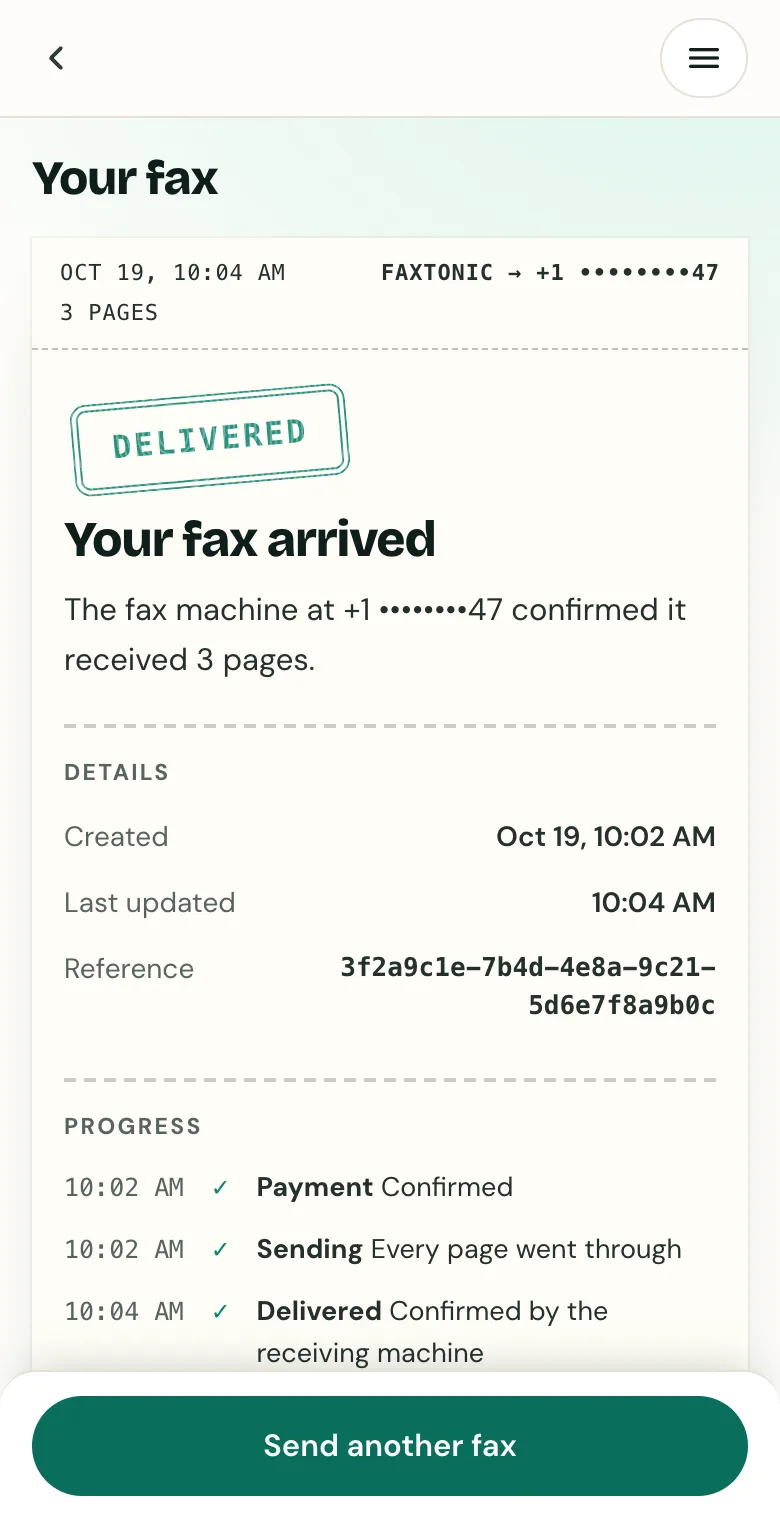
Follow your fax: the status page shows when it’s delivered.
Official sources
- Microsoft: Features on Demand (Windows Fax and Scan isn’t preinstalled after Windows 11, version 22H2)
- Microsoft: Add, remove or hide optional features in Windows
- Microsoft: Windows Arm-based PCs FAQ
- Microsoft: Windows protected print mode
- Microsoft: Fax devices and providers (Windows Server 2008 R2, archived)
- Microsoft: Fax Server, connect to a fax modem or a fax server (Windows Server 2012 R2, archived)
- FCC: Technology transitions (check that fax machines work on a new network)
- Brother: faxing over VoIP lines (the transmission may time out)
- Microsoft: Save or convert to PDF in Office desktop apps
- Microsoft: The Microsoft Print to PDF printer in Windows (Outlook example)
- Microsoft: Install and use a scanner in Windows
FaxTonic is an independent fax service. It isn’t affiliated with or endorsed by any agency, insurer, court or company named in this guide. Fax numbers and rules change: when a letter or form gives you a fax number, use that one.